


A service connection is the identity an Azure DevOps pipeline uses to reach into Azure. This procedure creates two of them: an automatic one, where Azure DevOps makes the identity, and a manual one. Neither holds a password.
Required: an Azure account with an active subscription and the Owner role on it, an Azure DevOps organization with a project and a repository, the Azure command-line interface already signed in (az login), a browser.
Duration: about thirty minutes.
Cost: nothing. Resource groups, tags and app registrations are free, and the pipeline runs fit inside the 1,800 free minutes a month.
The portal in the screenshots is in English: command names are reported as they appear on screen.
The automatic connection
1. Prepare two resource groups
az group create -n rg-guide-devops-01 -l italynorth
az group create -n rg-guide-devops-02 -l italynorth
The first is the one the pipeline will be allowed to use. The second is there to show that it cannot touch it.
2. Open the form
In the Azure DevOps project: Project settings > Service connections > New service connection. Pick Azure Resource Manager and press Next.
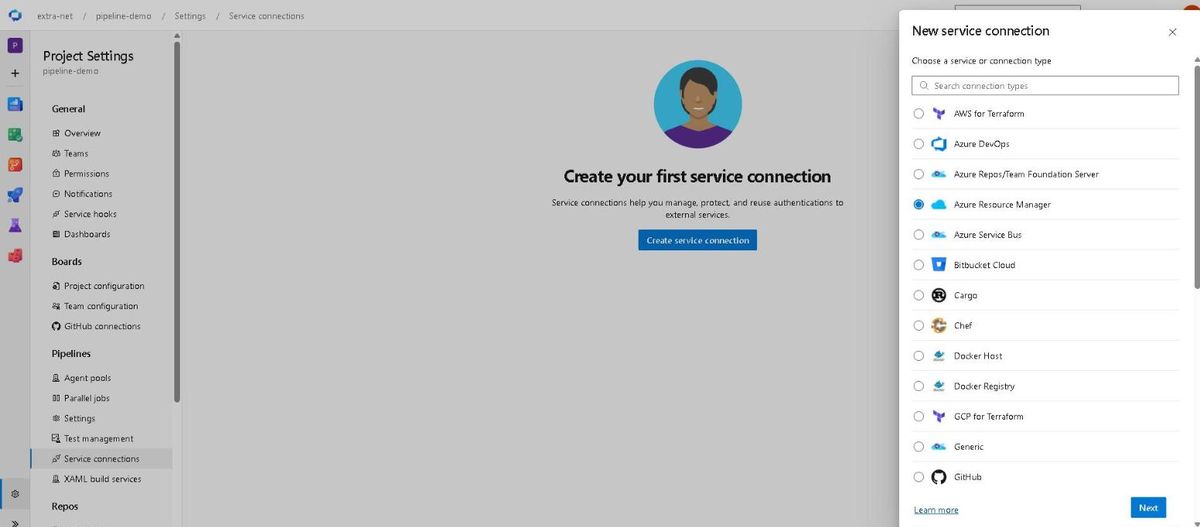
3. Choose the identity and narrow the scope
- Identity type: App registration (automatic)
- Credential: Workload identity federation
- Scope level: Subscription
- Subscription: yours
- Resource group:
rg-guide-devops-01 - Service Connection Name:
sc-guide-auto
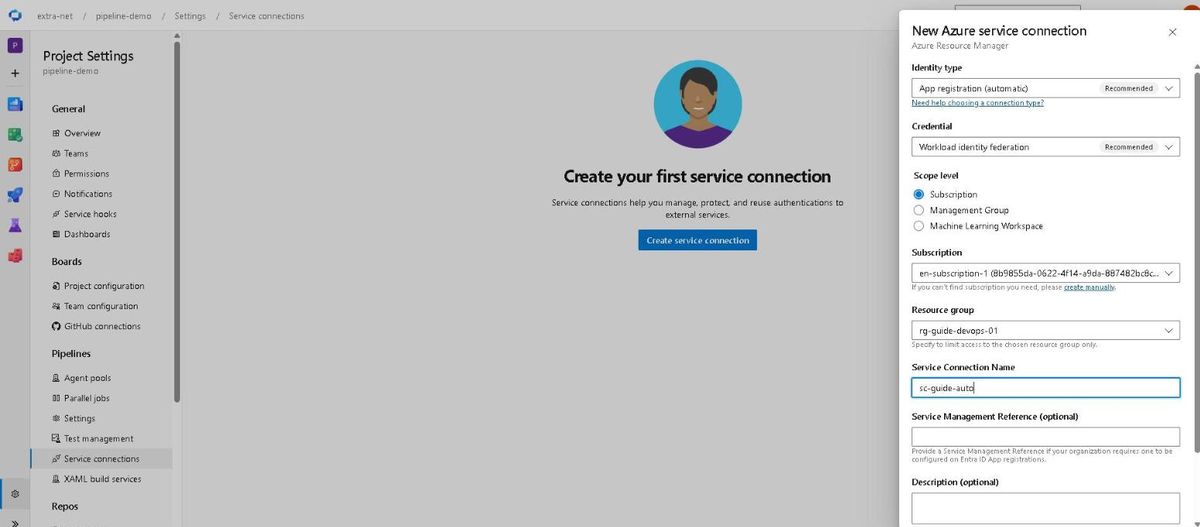
The Resource group field is optional: leave it empty and the connection gets its role over the whole subscription; fill it in and it gets the role over that one group.
At the bottom of the form, under Security, leave Grant access permission to all pipelines unticked. Press Save.
4. The connection is ready
The list reports the name, the type and the authentication method: Workload identity federation (Automatic).
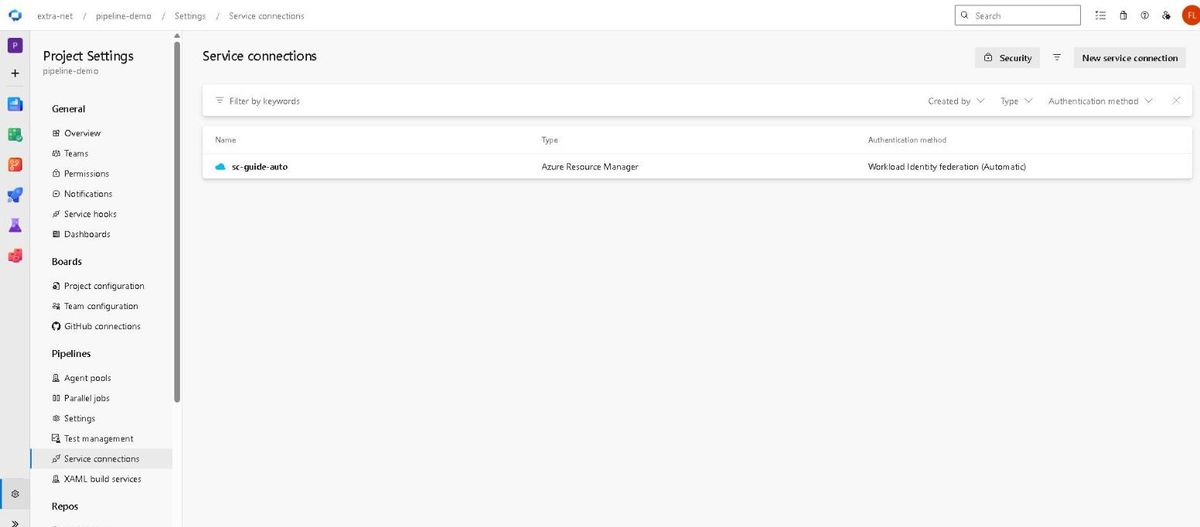
What Azure DevOps created for you
5. The app registration and its federated credential
In the Azure portal: Microsoft Entra ID > App registrations. The new entry is called <organization>-<project>-<connection id>. Open it, then Certificates & secrets > Federated credentials, and open the single row.
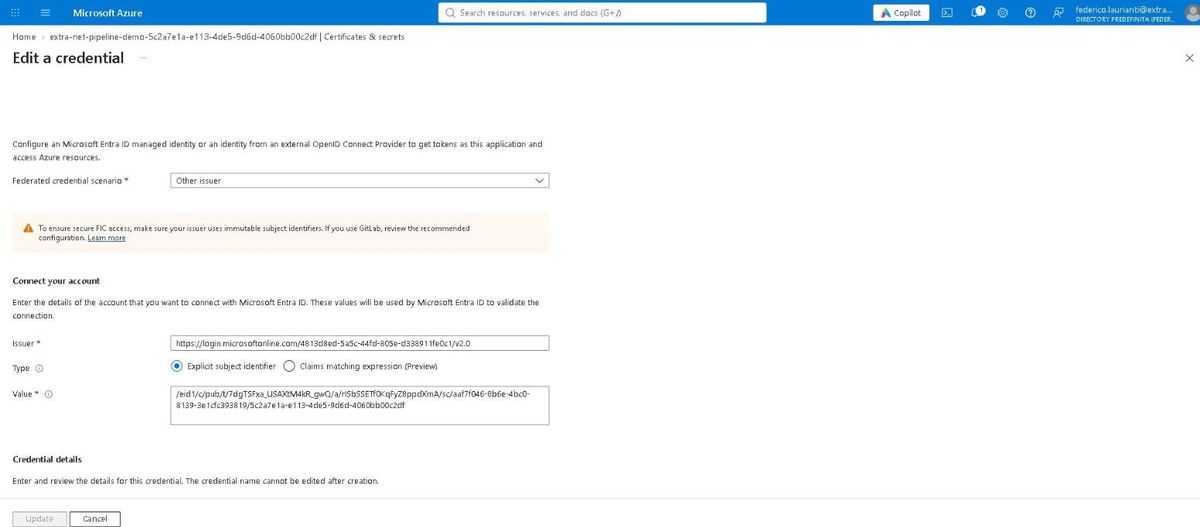
There is no password inside. There are two values:
Issuer   https://login.microsoftonline.com/<tenant id>/v2.0
Value    /eid1/c/pub/t/.../a/.../sc/<organization id>/<connection id>
The same values are readable from the command line:
az ad app federated-credential list --id <application id> -o json6. The role, on the resource group only
In the portal, the rg-guide-devops-01 group > Access control (IAM) > Role assignments, filtered by the project name.
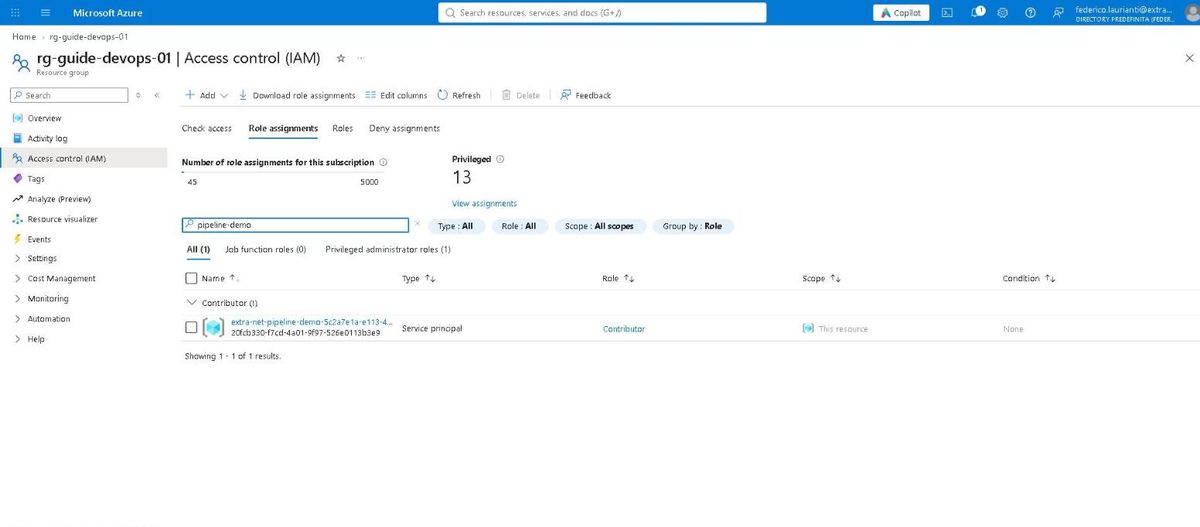
A single row: Contributor, with scope This resource. On the second group there is nothing.
The test: a pipeline
7. The file
Put this file in the repository, named azure-pipelines.yml:
trigger: none

pool:
  vmImage: ubuntu-latest

steps:
- task: AzureCLI@2
  displayName: Who am I
  inputs:
    azureSubscription: sc-guide-auto
    scriptType: bash
    scriptLocation: inlineScript
    inlineScript: |
      az account show --query "{identity:user.name, type:user.type}" -o yaml

- task: AzureCLI@2
  displayName: Read the authorized group
  inputs:
    azureSubscription: sc-guide-auto
    scriptType: bash
    scriptLocation: inlineScript
    inlineScript: |
      az group show -n rg-guide-devops-01 --query "{name:name, region:location}" -o yaml

- task: AzureCLI@2
  displayName: Write a tag on the authorized group
  inputs:
    azureSubscription: sc-guide-auto
    scriptType: bash
    scriptLocation: inlineScript
    inlineScript: |
      az group update -n rg-guide-devops-01 --tags guide=service-connection --query tags -o yaml

- task: AzureCLI@2
  displayName: Try the group it has no role on
  continueOnError: true
  condition: always()
  inputs:
    azureSubscription: sc-guide-auto
    scriptType: bash
    scriptLocation: inlineScript
    inlineScript: |
      az group show -n rg-guide-devops-02 --query name -o tsv
The connection name goes into azureSubscription: the field wants the name of the service connection, not of the subscription. The last step carries continueOnError: true because it is meant to fail.
8. Create the pipeline
Pipelines > New pipeline > Azure Repos Git > the repository > Existing Azure Pipelines YAML file > /azure-pipelines.yml > Continue > Run.
9. The first run stops and asks for permission
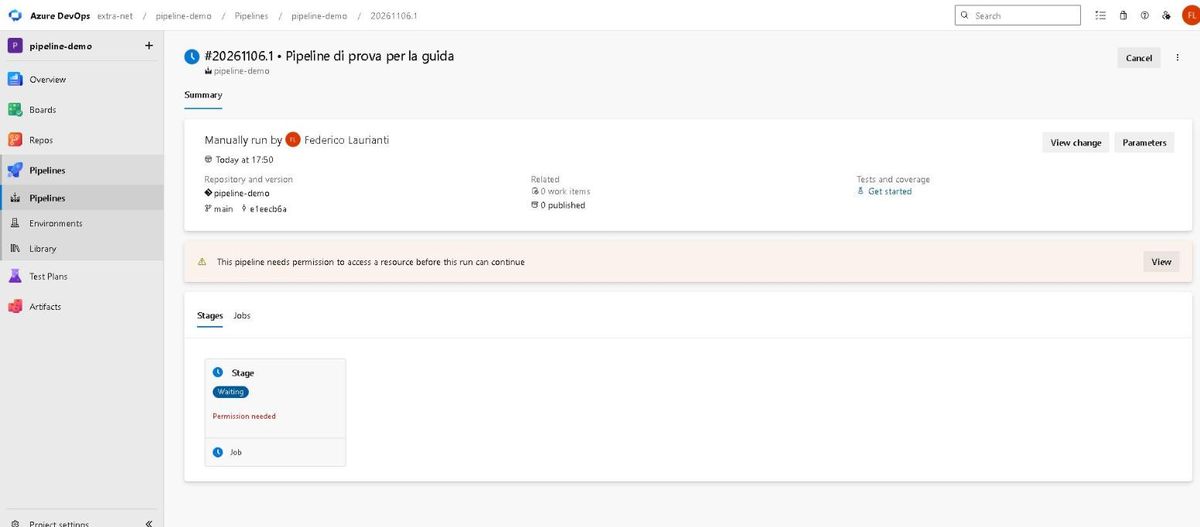
Press View, then Permit, and confirm: "Granting permission here will permit the use of Service connection 'sc-guide-auto' for all waiting and future runs of this pipeline."
10. The result
The run takes 41 seconds. In the log, the lines that matter:
Who am I
  az login --service-principal -u *** --tenant 4813d8ed-... --federated-token ***
  identity: ***
  type: servicePrincipal

Read the authorized group
  name: rg-guide-devops-01
  region: italynorth

Write a tag on the authorized group
  guide: service-connection

Try the group it has no role on
  ERROR: (AuthorizationFailed) The client '***' with object id '15bb16b7-...' does not have
  authorization to perform action 'Microsoft.Resources/subscriptions/resourcegroups/read'
  over scope '/subscriptions/.../resourcegroups/rg-guide-devops-02' or the scope is invalid.
The agent signs in with --federated-token. The identity is starred out even in the log.
The same connection by hand, with a narrow role
11. Create the application from the command line
From the portal's Cloud Shell, or from a terminal with az login already done:
az ad app create --display-name sc-guide-manual --sign-in-audience AzureADMyOrg
az ad sp create --id <application id>
The first command returns the appId, the second creates the service principal.
12. Fill in the manual form
New service connection > Azure Resource Manager, then:
- Identity type: App registration or managed identity (manual)
- Credential: Workload identity federation
- Service Connection Name:
sc-guide-manual - Directory (tenant) ID: the tenant id
Press Next. Azure DevOps saves the connection as a draft and shows the two values to register in Azure.
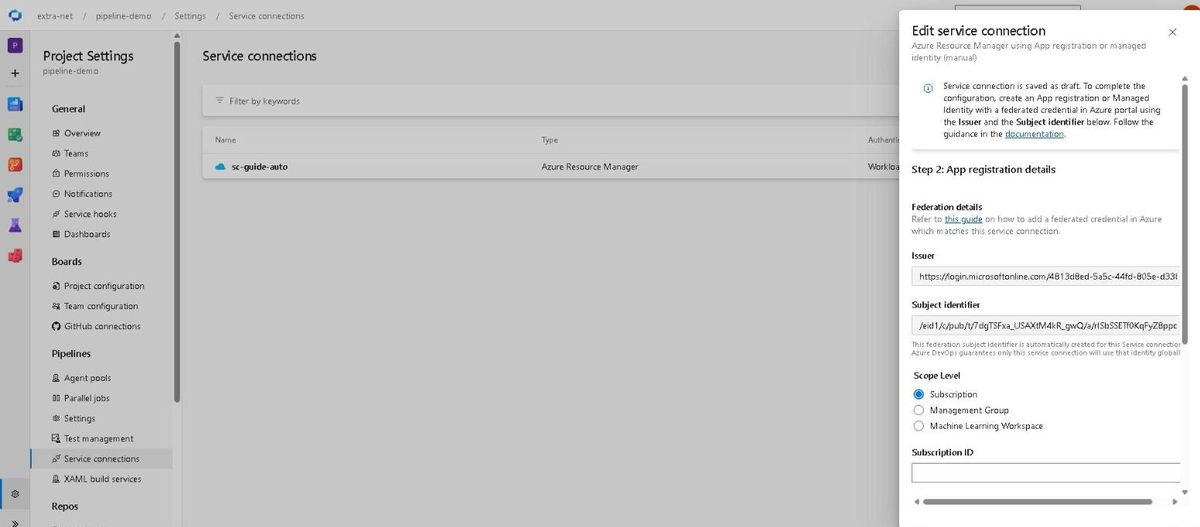
Fill in the remaining fields:
- Subscription ID: the subscription id
- Subscription name: the subscription name
- Application (client) ID: the
appIdfrom step 11
Leave the window open.
13. Register the credential and assign the role
With Issuer and Subject identifier copied from the form:
az ad app federated-credential create --id <application id> --parameters '{
  "name": "sc-guide-manual",
  "issuer": "<Issuer copied from the form>",
  "subject": "<Subject identifier copied from the form>",
  "audiences": ["api://AzureADTokenExchange"]
}'

az role assignment create --assignee <application id> --role Reader --scope /subscriptions/<subscription id>/resourceGroups/rg-guide-devops-01
The role is Reader, on one group only. Go back to the form and press Verify and save.
14. Run the pipeline again
Change one line in the file, azureSubscription: sc-guide-manual, and start the pipeline again.
Read the authorized group
  name: rg-guide-devops-01
  region: italynorth

Write a tag on the authorized group
  ERROR: (AuthorizationFailed) The client '***' with object id 'e1fad9c5-...' does not have
  authorization to perform action 'Microsoft.Resources/subscriptions/resourcegroups/write'
  over scope '/subscriptions/.../resourcegroups/rg-guide-devops-01' or the scope is invalid.
It reads, and it stops on the step that writes.
Clean up
az group delete -n rg-guide-devops-01 --yes --no-wait
az group delete -n rg-guide-devops-02 --yes --no-wait
az ad app delete --id <manual application id>
The two connections are deleted from the project, under Project settings > Service connections. The registration created by the automatic mode goes away together with the connection.
Command names, screenshots and timings recorded on Azure DevOps and the Azure portal on 6 November 2026, Italy North region, with the Azure command-line interface 2.91.0 and the AzureCLI@2 task version 2.282.3.