


Procedure to deploy the new version of a model next to the one in use, on the same endpoint, and move traffic to it step by step: first a copy of the requests, then a share, then all of it, with a rollback to the previous version. A .NET console calls the endpoint a hundred times and counts which version answered.
You need: the mlw-guide-extranet-01 workspace with the iris-model model registered in versions 1 and 2, that is steps 1 to 8 of the guide Train a neural network on Azure Machine Learning and call it from .NET, and .NET 10 on your computer.
Time: about an hour, most of it waiting: in the test the first deployment took 25 minutes and the second 11.
Cost: less than one dollar, if you delete the resources at the end. The studio shows 0.12 dollars an hour for each of the two endpoint machines.
The studio in the screenshots is in English: command names are written as they appear on screen.
Two versions on the same endpoint
1. Deploy version 1 as blue
In the studio open Models > iris-model, version 1, press Use this model > Real-time endpoint and fill in:
- Instance count:
1 - Virtual machine:
Standard_D2as_v4, the one proposed - Endpoint: New
- Endpoint name: a name of your own, unique in the region, here
iris-rollout-extranet-01 - Deployment name:
blue
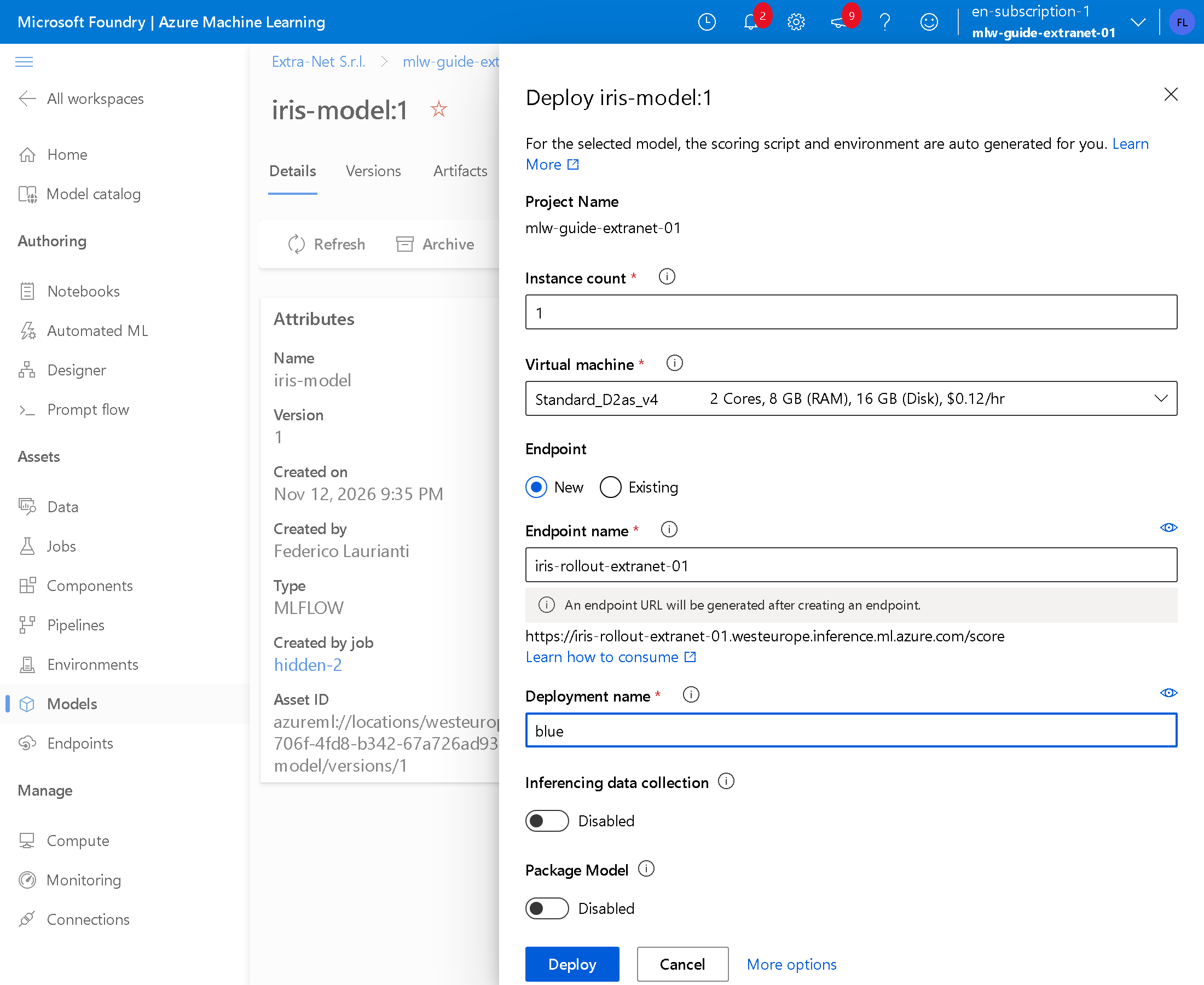
Press Deploy. When it finishes, blue receives 100% of the traffic.
2. Add version 2 as green
Open Models > iris-model, version 2, press Use this model > Real-time endpoint and fill in:
- Instance count:
1 - Endpoint: Existing; in Endpoint name the studio proposes
iris-rollout-extranet-01 - Deployment name:
green
In Virtual machine keep the one proposed, Standard_D2a_v4. In the test the single instance of blue took 4 of the 4 cores in the quota of the Standard_D2as_v4 family, and the studio proposed a machine from another family, at the same price.
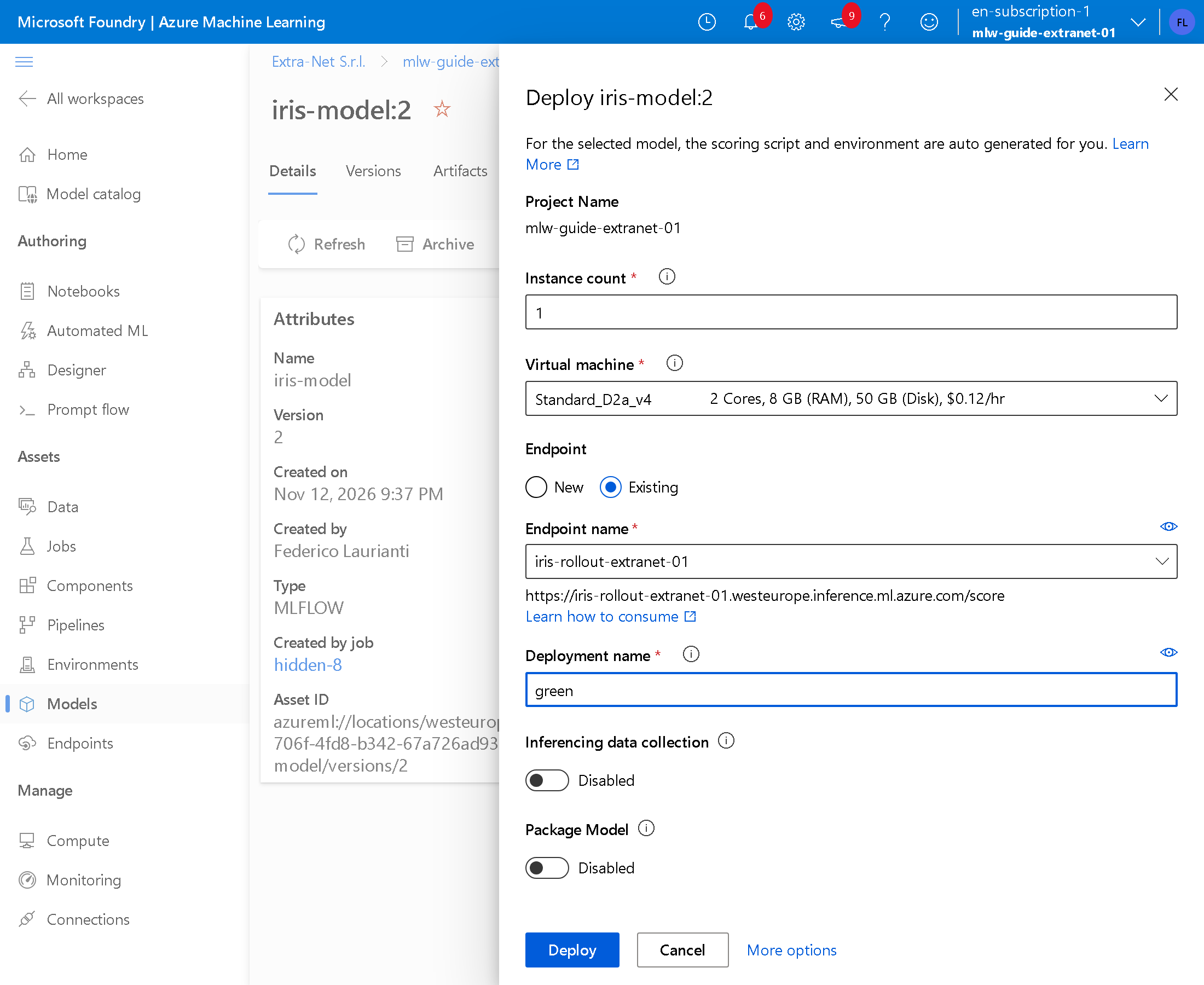
Press Deploy. When it finishes, in Endpoints > iris-rollout-extranet-01, Details tab, green appears with 0% of the traffic.
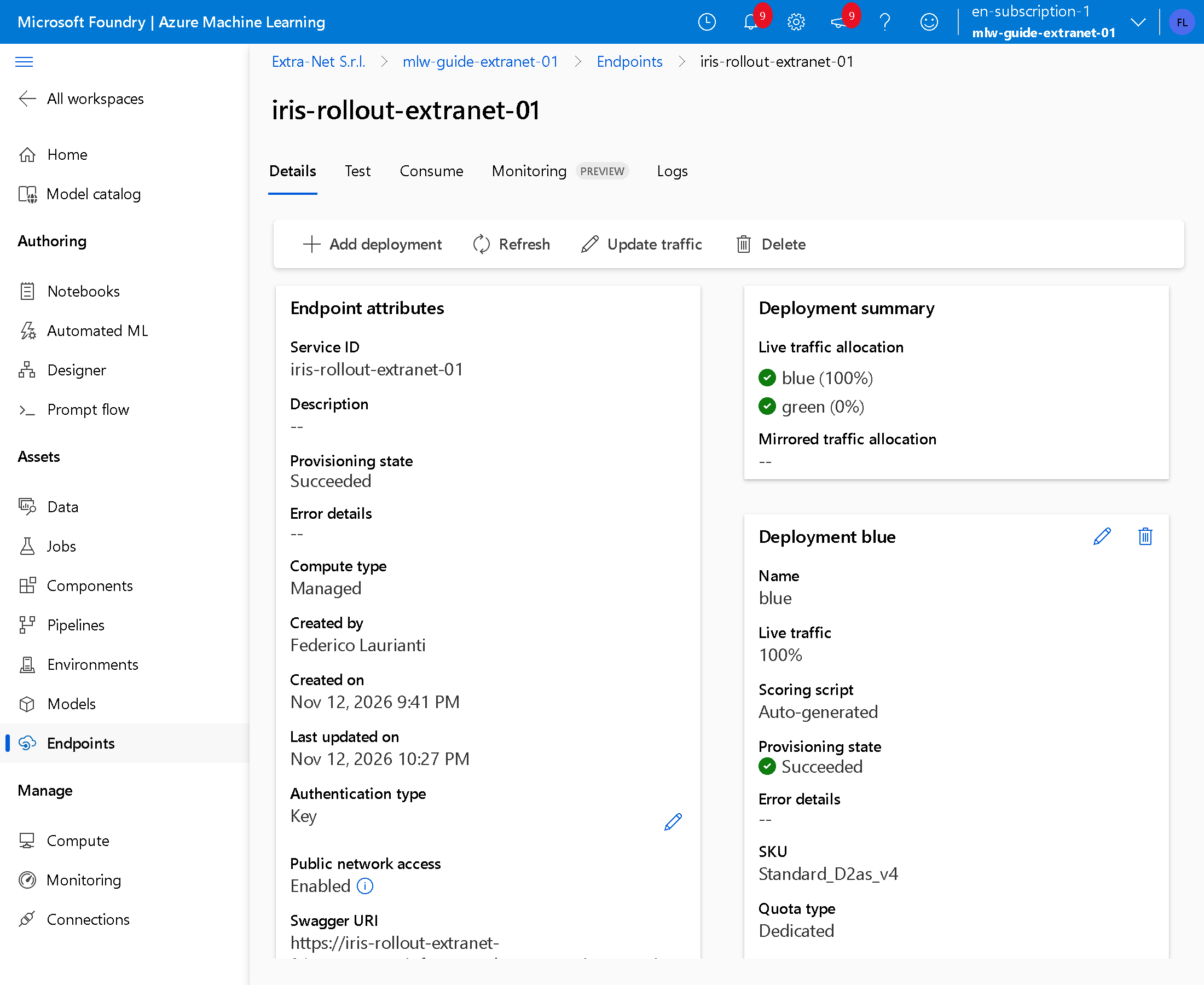
3. Copy the address and the key
In the Consume tab copy REST endpoint and Primary key. The key gives access to the model: don't write it in the code and don't publish it.
The .NET console
4. Create the console
dotnet new console -n iris-rollout
cd iris-rollout
It replaces Program.cs. It sends the same flower, a versicolor, a hundred times and counts the responses by the azureml-model-deployment header, which the endpoint adds to every response with the name of the deployment. With an argument, it sends the same header in the request and calls only that deployment.
using System.Net.Http.Headers;
using System.Net.Http.Json;

string scoringUri = Environment.GetEnvironmentVariable("SCORING_URI")!;
string key = Environment.GetEnvironmentVariable("ENDPOINT_KEY")!;
string? deployment = args.Length > 0 ? args[0] : null;

var request = new
{
    input_data = new
    {
        columns = new[] { "sepal_length", "sepal_width", "petal_length", "petal_width" },
        index = new[] { 0 },
        data = new[] { new[] { 6.0, 2.9, 4.5, 1.5 } },
    },
};

using HttpClient http = new();
http.DefaultRequestHeaders.Authorization = new AuthenticationHeaderValue("Bearer", key);
if (deployment is not null)
{
    http.DefaultRequestHeaders.Add("azureml-model-deployment", deployment);
}

Dictionary<string, int> count = [];
Dictionary<string, string> lastAnswer = [];

for (int i = 0; i < 100; i++)
{
    using HttpResponseMessage response = await http.PostAsJsonAsync(scoringUri, request);
    response.EnsureSuccessStatusCode();
    string name = response.Headers.GetValues("azureml-model-deployment").First();
    count[name] = count.GetValueOrDefault(name) + 1;
    lastAnswer[name] = await response.Content.ReadAsStringAsync();
}

foreach (string name in count.Keys.Order())
{
    Console.WriteLine($"{name}: {count[name]} responses, last {lastAnswer[name]}");
}
5. Try the two versions
Set the two variables with the values you copied and run:
export SCORING_URI=https://iris-rollout-extranet-01.westeurope.inference.ml.azure.com/score
export ENDPOINT_KEY=<key>
dotnet run
dotnet run -- green
In PowerShell the first two lines are $env:SCORING_URI = "..." and $env:ENDPOINT_KEY = "...". In the test:
blue: 100 responses, last [{"0": 0.5591238737106323, "1": 0.3279431164264679, "2": 0.11293303966522217}]
green: 100 responses, last [{"0": 0.006401204038411379, "1": 0.7643778324127197, "2": 0.22922095656394958}]
Without an argument the answer always comes from blue, which gives the flower as a setosa at 56%. Called directly, green recognizes it as a versicolor at 76%.
The traffic
6. Mirror part of the traffic to green
In the Details tab press Update traffic, turn on Enable mirrored traffic, choose green in Deployment name, type 20 in Traffic allocation % and press Update.
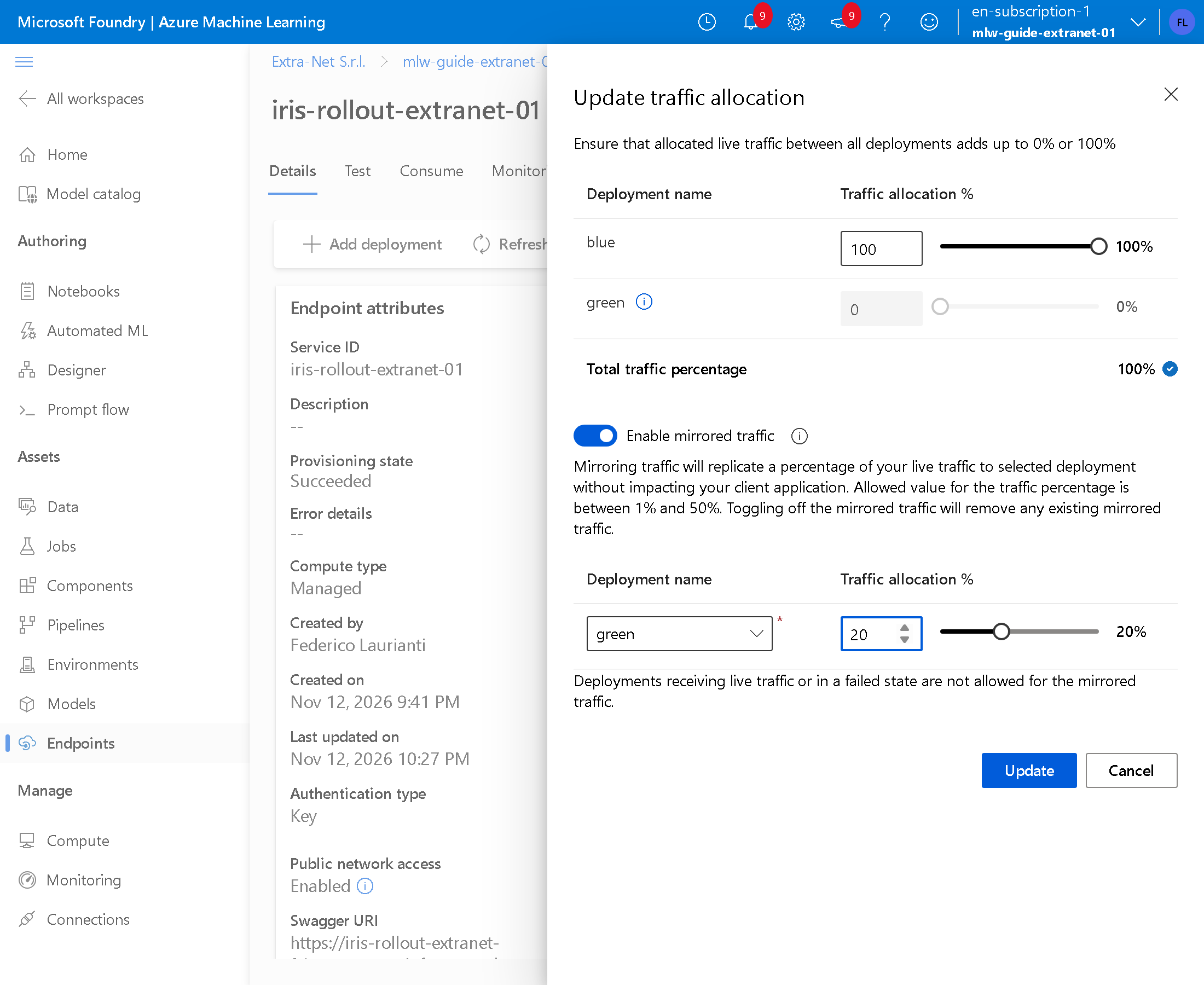
The panel accepts values from 1% to 50% and doesn't allow mirroring traffic to a deployment that already receives live traffic.
Run dotnet run again. The responses all come from blue:
blue: 100 responses, last [{"0": 0.5591238737106323, "1": 0.3279431164264679, "2": 0.11293303966522217}]The copies show up in the Logs tab, choosing green: each request received leaves an azmlinfsrv - POST /score 200 line. In the test, for the 100 calls, green received 23.
7. Give green 10% of the traffic
Press Update traffic, turn off Enable mirrored traffic, type 90 for blue and 10 for green and press Update.
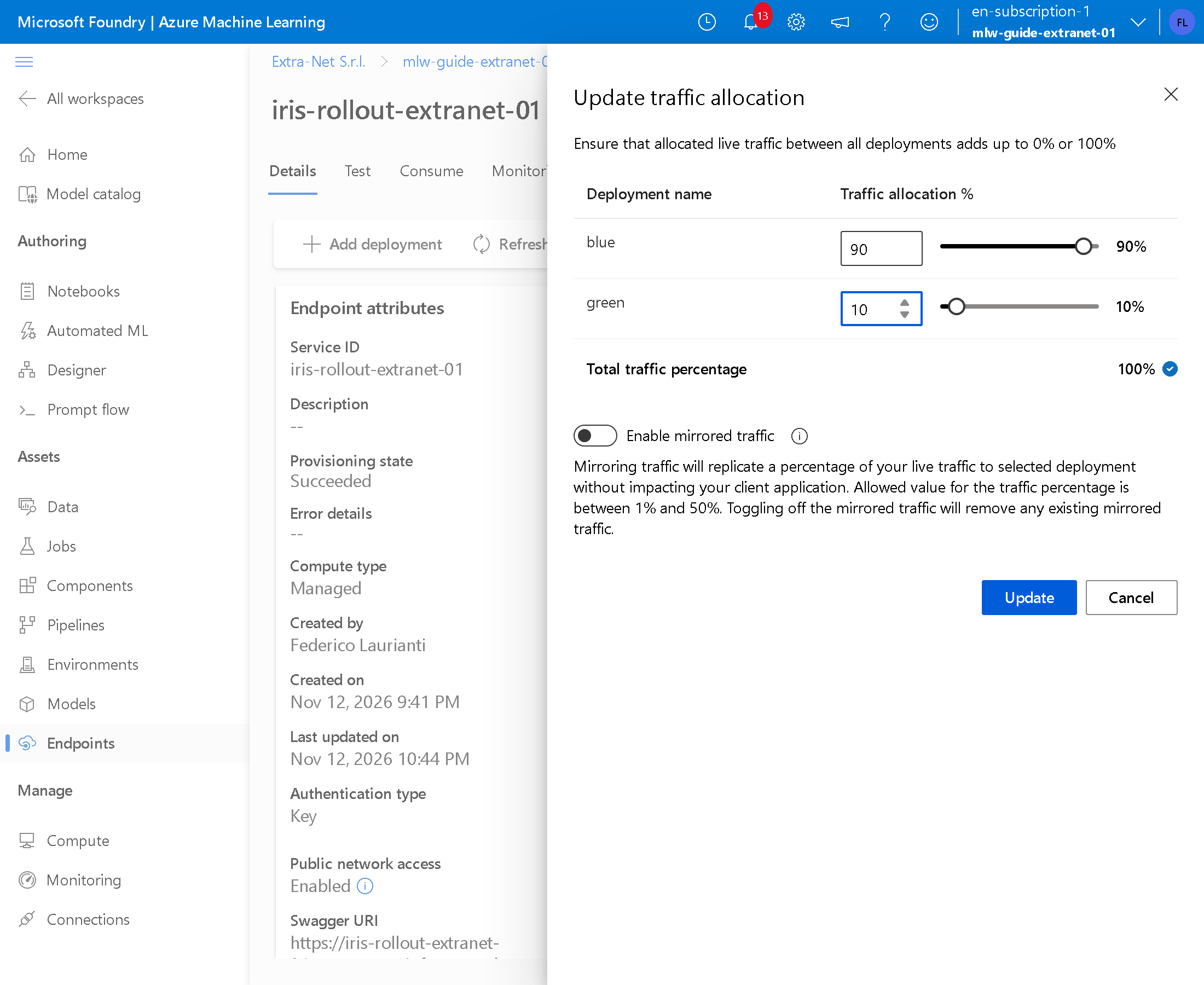
With dotnet run, in the test:
blue: 87 responses, last [{"0": 0.5591238737106323, "1": 0.3279431164264679, "2": 0.11293303966522217}]
green: 13 responses, last [{"0": 0.006401204038411379, "1": 0.7643778324127197, "2": 0.22922095656394958}]
8. Roll back to the previous version
Press Update traffic, type 100 for blue and 0 for green and press Update.
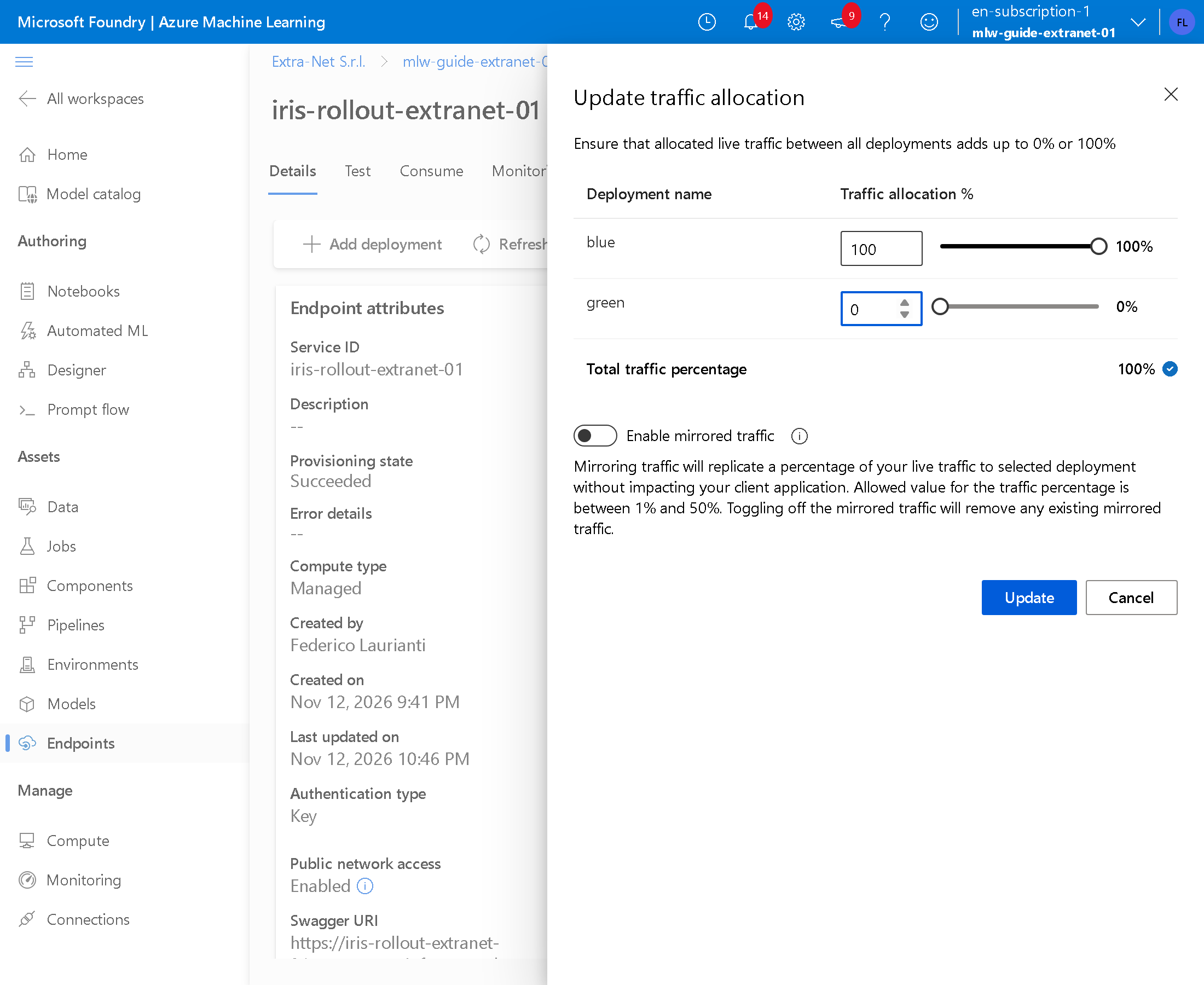
With dotnet run the 100 responses come from blue again; green stays deployed.
9. Move all the traffic to green
Press Update traffic, type 0 for blue and 100 for green and press Update.
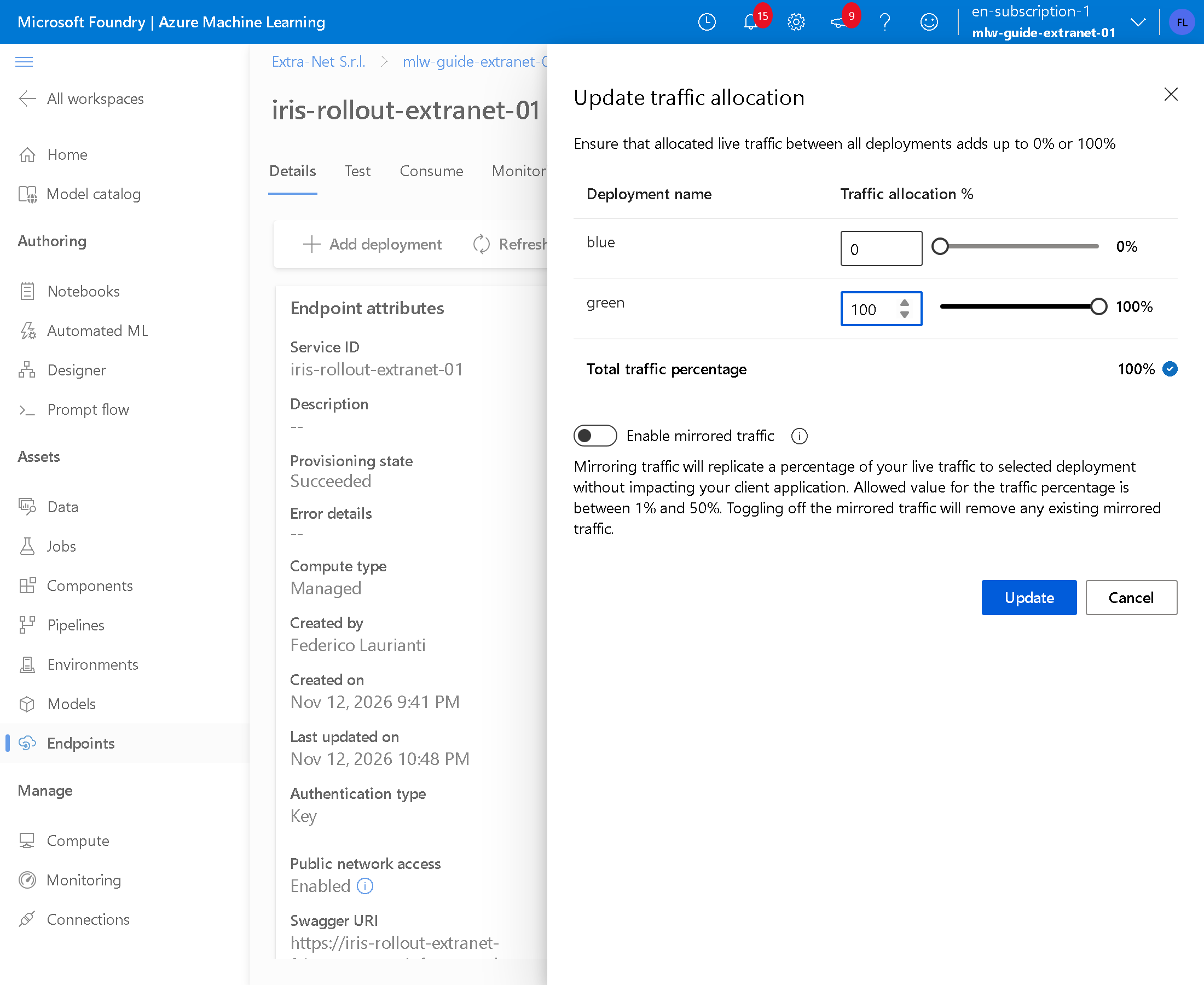
With dotnet run, in the test:
green: 100 responses, last [{"0": 0.006401204038411379, "1": 0.7643778324127197, "2": 0.22922095656394958}]In the test every traffic change was applied in less than two minutes.
10. Delete blue
In the Details tab, in the Deployment blue box, press the trash icon, tick Delete deployment: blue and press Delete.
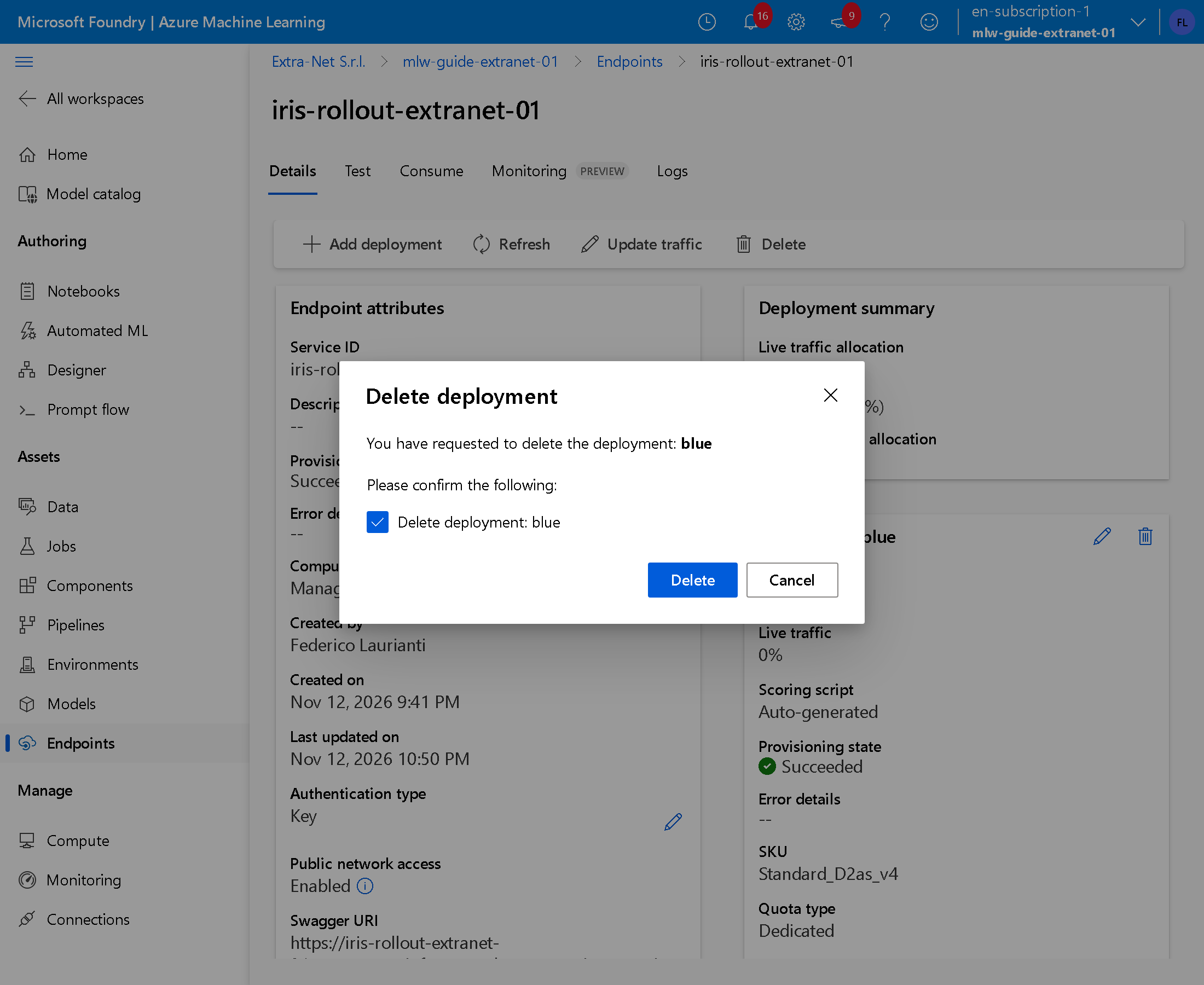
In the test the deletion took 6 minutes. Afterwards, dotnet run -- blue ends with 404 (Not Found).
Delete the resources
11. Delete the group
Delete the rg-guide-ml-01 group as in step 13 of the starting guide.
12. Permanently delete the workspace
Once the group is deleted, Azure keeps the workspace among the deleted ones for 14 days. While it stays there, creating a new workspace with the same name fails with Soft-deleted workspace exists. Please purge or recover it.
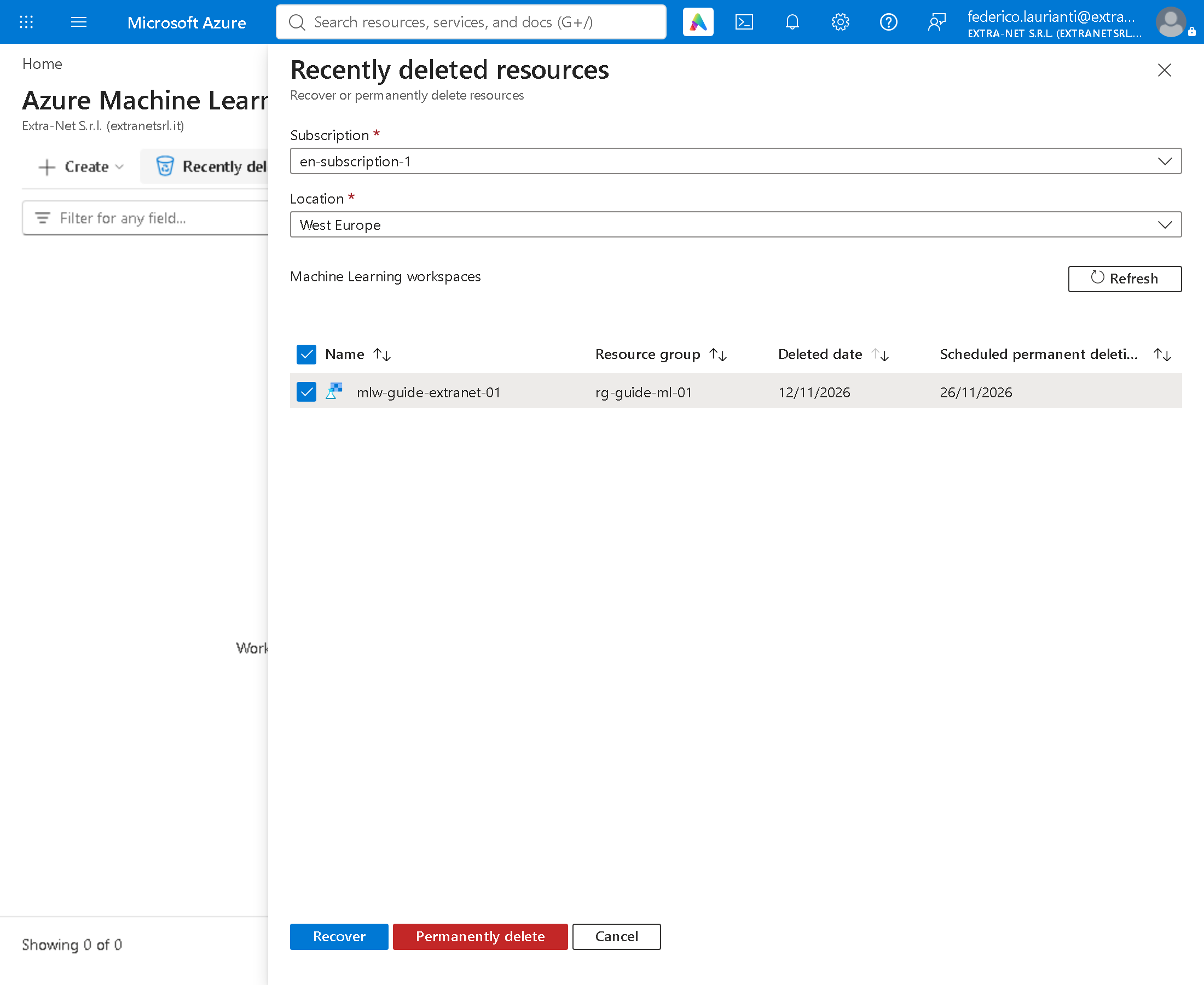
In the portal search for Azure Machine Learning, press Recently deleted, choose the subscription and, in Location, West Europe. Tick mlw-guide-extranet-01 and press Permanently delete.
Command names, screenshots and responses recorded on November 12, 2026, West Europe region, with .NET 10.0.401.