

Procedure to deploy the gpt-5-mini model in a Microsoft Foundry project, test it from the portal and call it from a .NET console application authenticated with Entra ID, with no keys in the code.
Required: an Azure account with an active subscription, a browser, .NET 10 and the Azure command-line interface on the computer. Duration: about twenty minutes. Cost: billed per token; a Global Standard deployment has no fixed fee.
The portal in the screenshots is in English: command names are reported as they appear on screen.
Deploy the model
1. Create the resource group
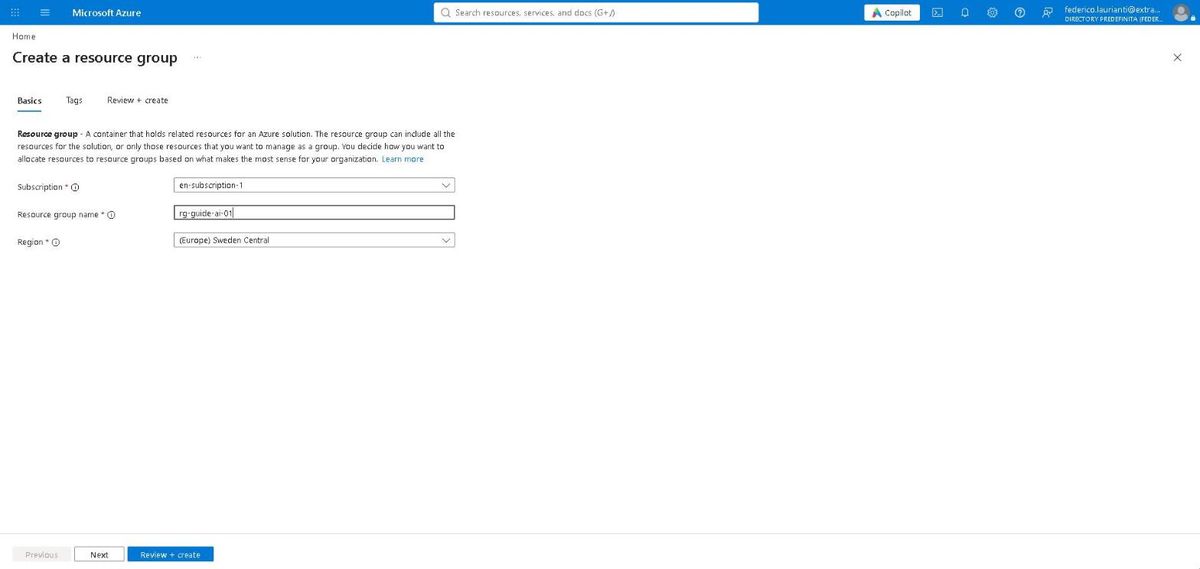
On portal.azure.com, search for Resource groups and press + Create.
| Field | Value |
|---|---|
| Resource group name | rg-guide-ai-01 |
| Region | (Europe) Sweden Central |
Press Review + create, then Create.
2. Create the project
On ai.azure.com press Create project, open Advanced options and fill in the fields.
| Field | Value |
|---|---|
| Project name | proj-guide-01 |
| Foundry resource | proj-guide-01-resource |
| Region | Sweden Central |
| Resource group | rg-guide-ai-01 |
Leave Set up recommended resources off: when on, it also creates an Application Insights resource. Press Create; creation takes about a minute.
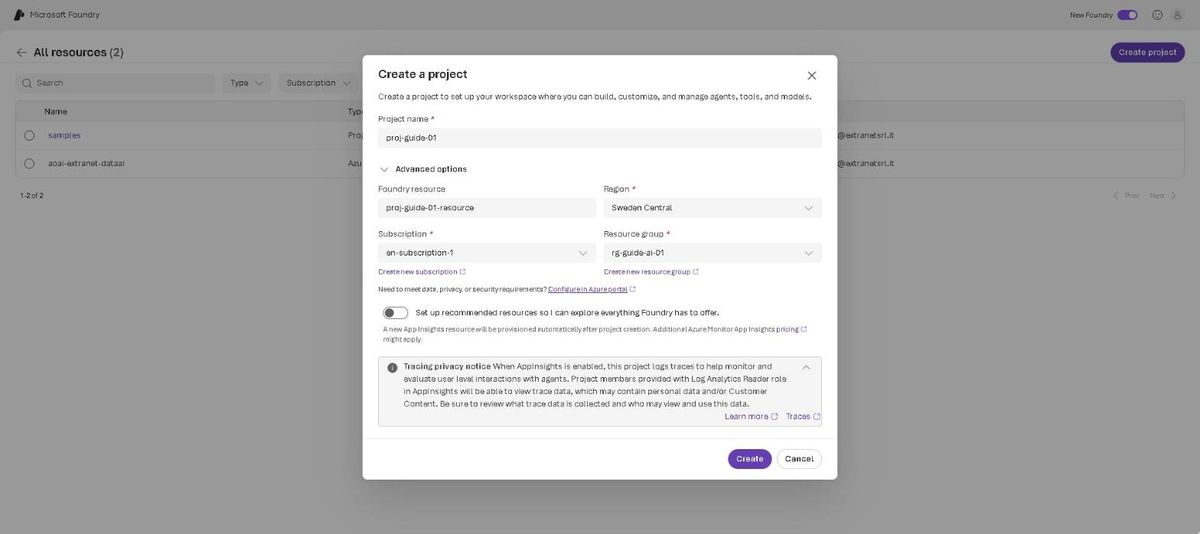
The resource group has to exist beforehand: the dialog only lets you pick one.
3. Find the model
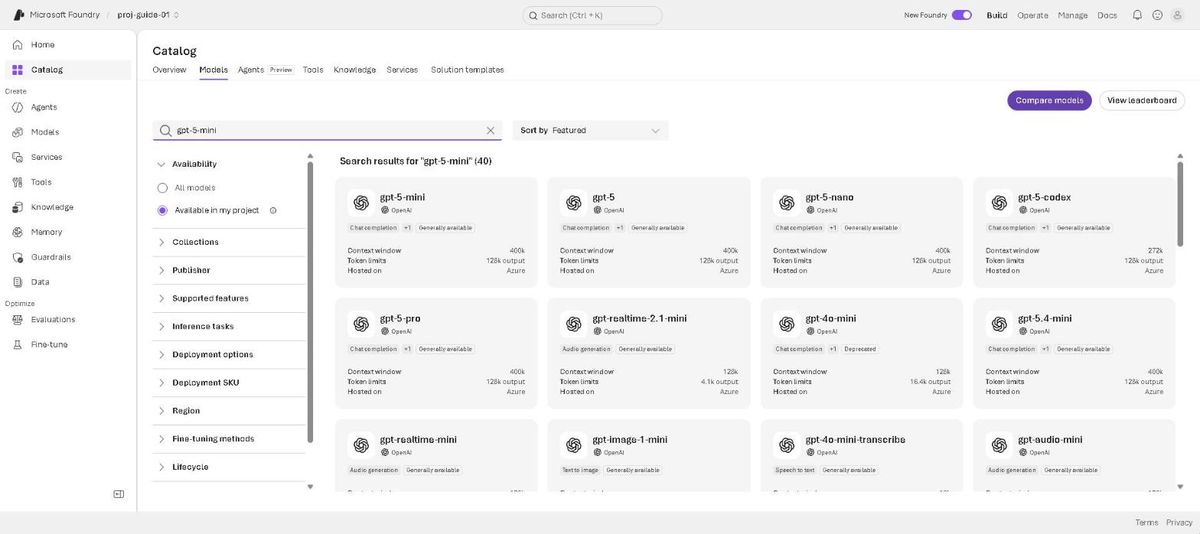
Open Catalog, the Models tab, and type gpt-5-mini in the search box. The Available in my project filter is already on.
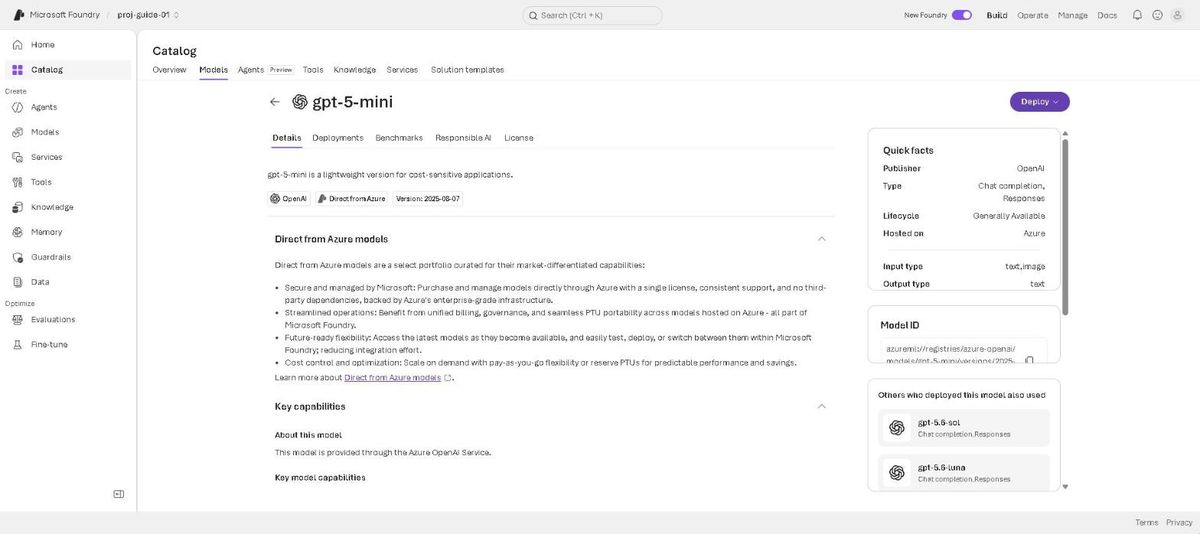
4. Open the model card
Press the gpt-5-mini card. On the right, Quick facts gives publisher, type and where it is hosted.
5. Deploy
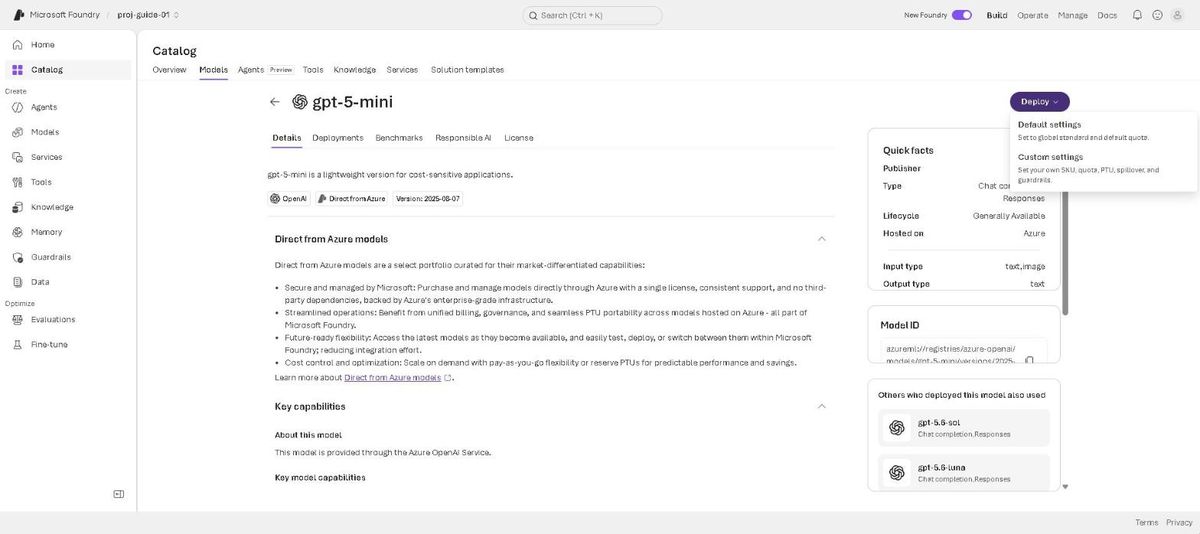
Press Deploy and choose Default settings, that is a Global Standard deployment with the default quota.
Test it from the portal
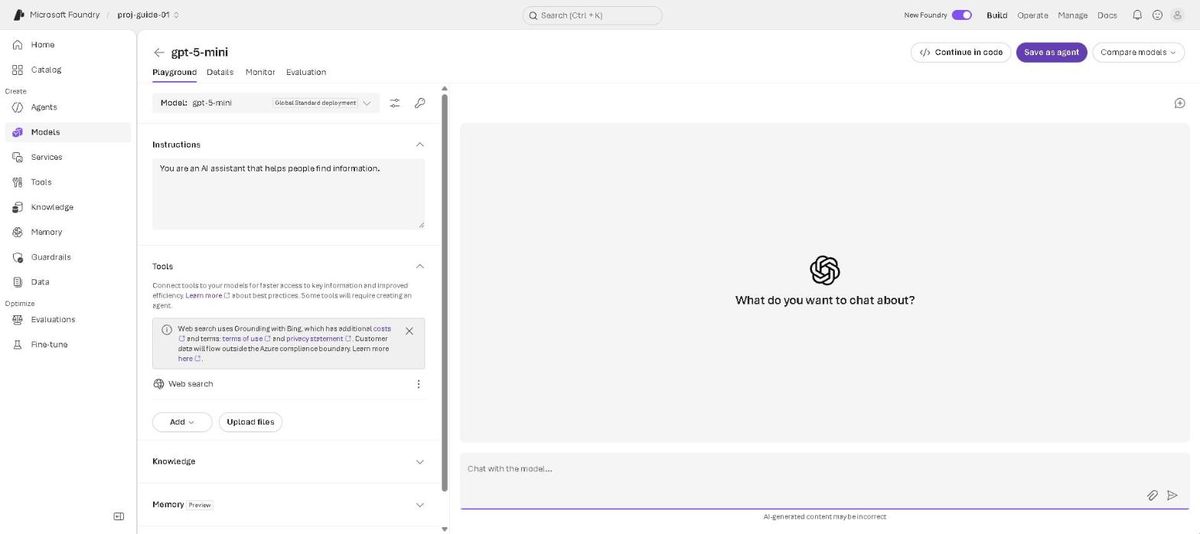
6. The playground opens on the deployment
When the deployment is ready the portal opens the model playground. System instructions, tools and memory are on the left; the conversation on the right.
7. Ask a question
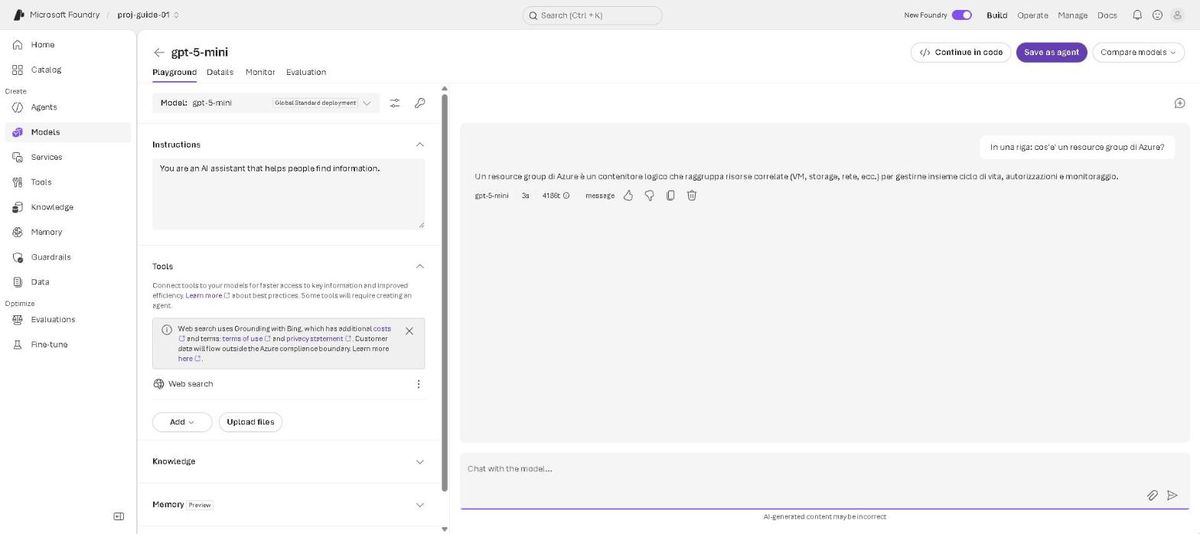
Type the question at the bottom and press Enter. Under the answer the portal reports the model, the time taken and the tokens used: in this run, 3 seconds and 4,186 tokens.
8. Take the endpoint
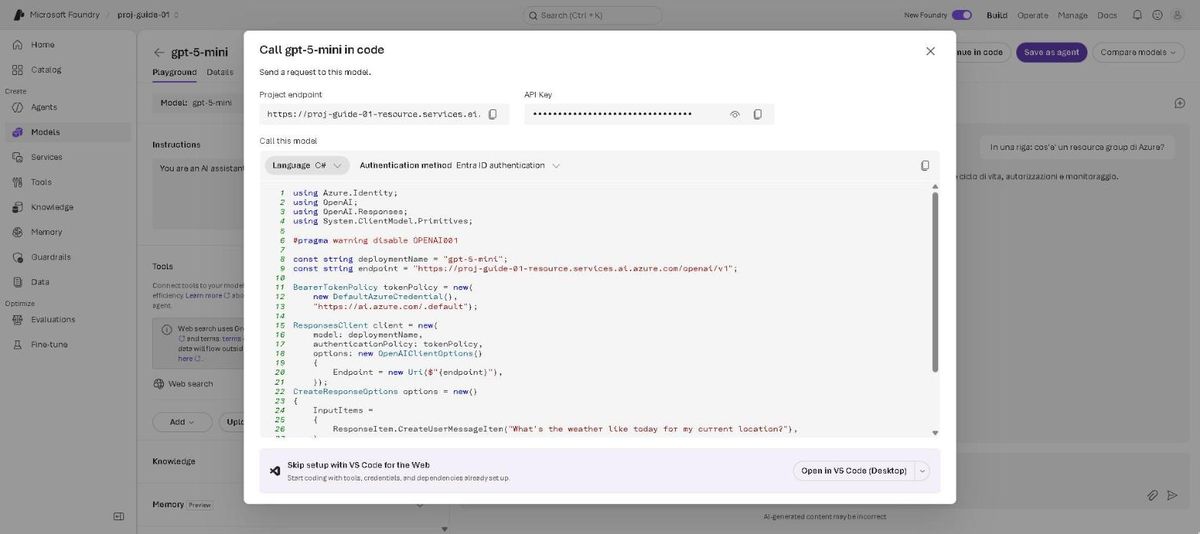
Press Continue in code. The dialog gives the project endpoint and the key, and generates code in the language you pick. Set Language to C# and Authentication method to Entra ID authentication.
| Field | Value |
|---|---|
| Project endpoint | https://proj-guide-01-resource.services.ai.azure.com/openai/v1 |
| Deployment | gpt-5-mini |
Call the model from .NET
9. Create the application
dotnet new console -n foundry-demo
cd foundry-demo
dotnet add package Azure.Identity --version 1.21.0
dotnet add package OpenAI --version 2.14.0
az login
az login is needed because DefaultAzureCredential reuses the account of the command-line interface.
10. Write the code
The code generated by the portal does not compile against the OpenAI 2.14.0 package: ResponsesClient takes no model in the constructor and CreateResponseAsync wants a CreateResponseOptions. This is the version used here; it replaces Program.cs.
using Azure.Identity;
using OpenAI.Responses;
using System.ClientModel.Primitives;

#pragma warning disable OPENAI001

const string deploymentName = "gpt-5-mini";
const string endpoint = "https://proj-guide-01-resource.services.ai.azure.com/openai/v1";

BearerTokenPolicy tokenPolicy = new(
    new DefaultAzureCredential(),
    "https://ai.azure.com/.default");

ResponsesClient client = new(
    tokenPolicy,
    new ResponsesClientOptions { Endpoint = new Uri(endpoint) });

CreateResponseOptions options = new(
    deploymentName,
    [ResponseItem.CreateUserMessageItem("In one line: what is an Azure resource group?")]);

var response = await client.CreateResponseAsync(options);

Console.WriteLine(response.Value.GetOutputText());
#pragma warning disable OPENAI001 is needed because the Responses API in the package is marked experimental: without it, the build stops.
11. Run it
dotnet run
The program prints the model answer:
An Azure resource group is a logical container for related Azure resources
that allows you to deploy, manage, and apply access control, policies, and
lifecycle operations as a single unit.
If the answer is HTTP 404 (DeploymentNotFound), the deployment has just been created: wait a few minutes and try again.
Delete the resources
12. Delete the resource group
On portal.azure.com open rg-guide-ai-01. It holds two resources: the Foundry resource and the project.
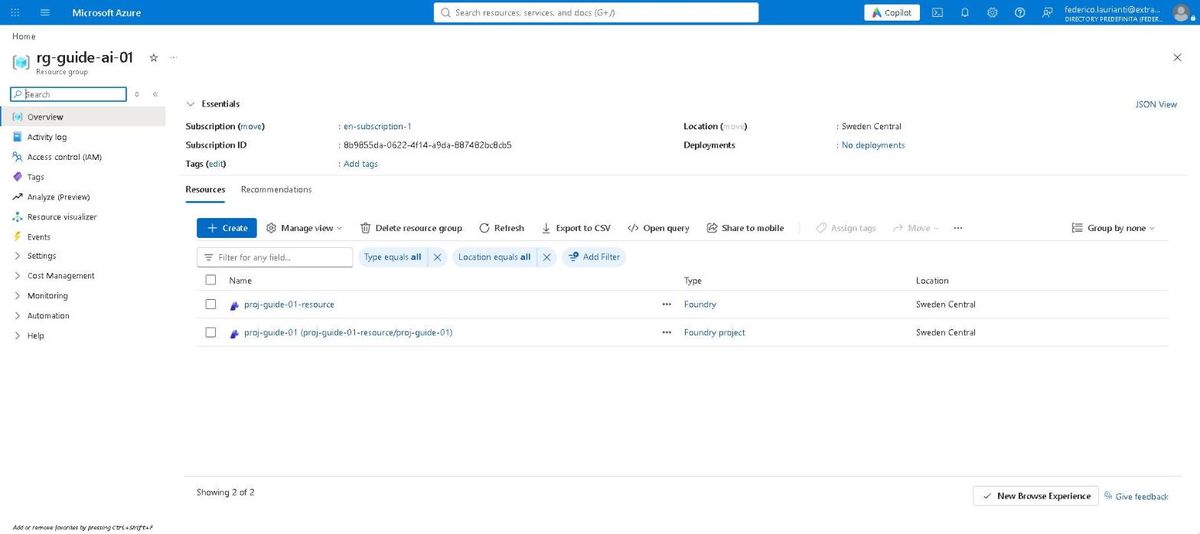
Press Delete resource group, type rg-guide-ai-01 again, press Delete, then confirm in the dialog that appears.
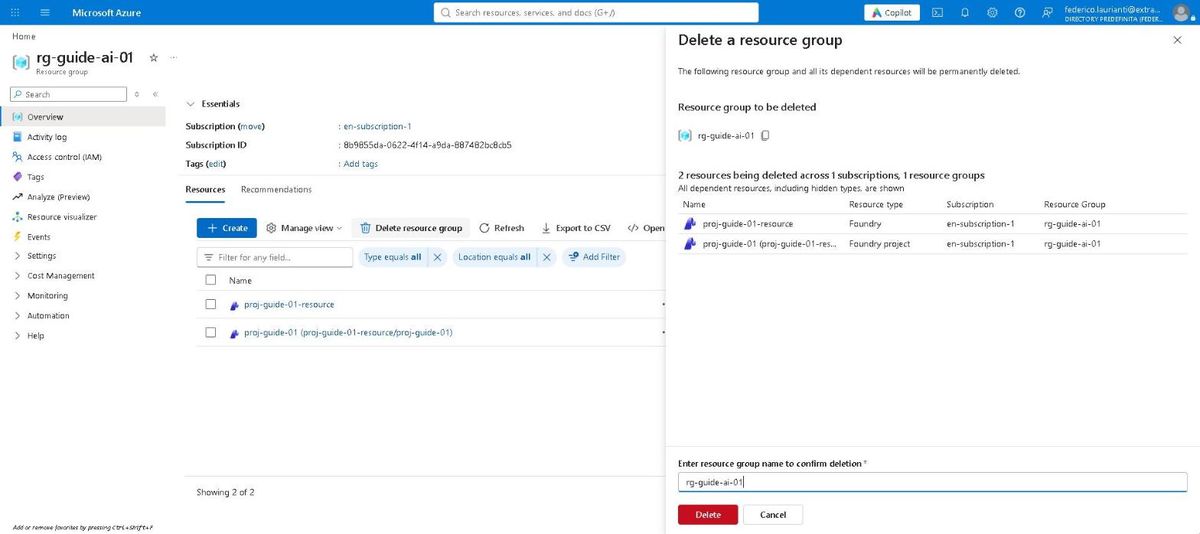
Once the group is gone the Foundry resource stays soft-deleted and its name cannot be reused. To free it right away:
az cognitiveservices account purge --name proj-guide-01-resource --location swedencentral --resource-group rg-guide-ai-01
Command names and screenshots taken on ai.azure.com and the Azure portal on 3 November 2026, Sweden Central region.