


Procedure to find documents by meaning instead of by words. A model turns each text into a list of numbers, Azure AI Search keeps them and returns the ones nearest to the question. All from a .NET console application, with no keys in the code.
Required: an Azure account with an active subscription, .NET 10 and the Azure command-line interface on the computer, a browser. Duration: about thirty minutes. Cost: the search service on the Free tier is not billed: the portal reports 0.00 USD per month. Embeddings are billed per token, and this run uses few of them.
The portal in the screenshots is in English: command names are reported as they appear on screen.
Prepare the resources
1. Create the search service
On portal.azure.com, search for AI Search and press + Create. Under Resource group press Create new and type the name: the group is created here, not beforehand. Then press Change Pricing Tier and pick Free.
| Field | Value |
|---|---|
| Resource group | rg-guide-ais-02 (new) |
| Service name | ais-guide-02 |
| Location | (Europe) West Europe |
| Pricing tier | Free |
The Free tier gives 3 indexes, 50 MB of storage and 25 MB for vectors: plenty for a test, and there is one per subscription. Press Review + create, then Create.
Regions come and go from that list when demand is high. If West Europe is missing, pick another one and keep it the same for every resource in this guide.
2. Drop the keys
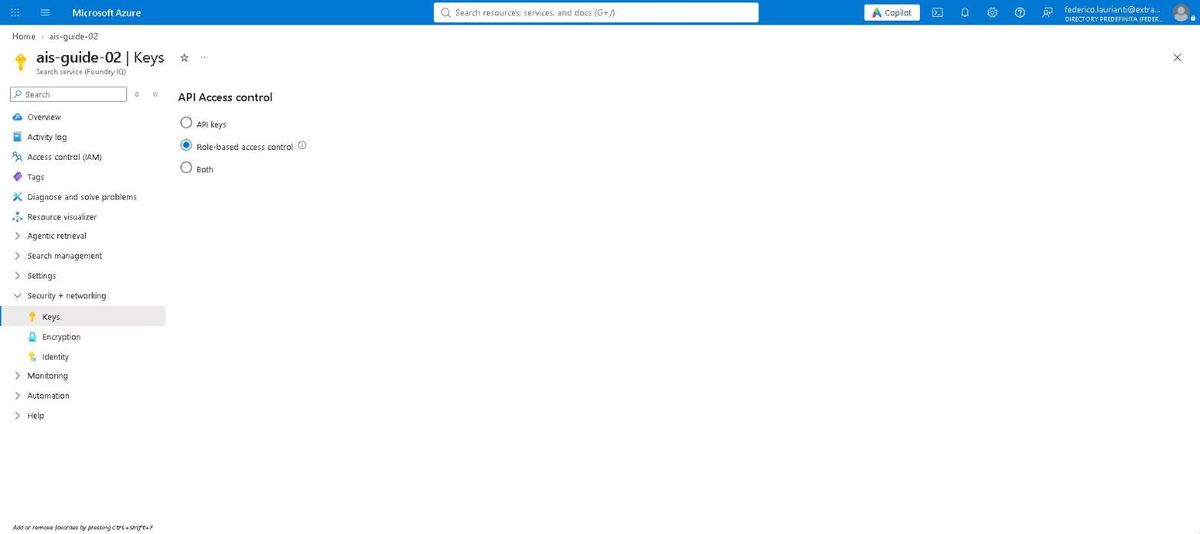
In the new service open Security + networking → Keys, pick Role-based access control and confirm. From here on the service only accepts identities, not the admin keys, which indeed disappear from the page.
3. Create the model resource
You need a model that turns texts into vectors. Create it from the command line:
az cognitiveservices account create \
  --name foundry-guide-ais-02 \
  --resource-group rg-guide-ais-02 \
  --kind AIServices --sku S0 --location westeurope \
  --custom-domain foundry-guide-ais-02 --yes
--custom-domain is not optional: without it the resource only gets the shared regional address, the name foundry-guide-ais-02.openai.azure.com does not exist and the application stops with No such host is known. The domain name has to be unique across Azure.
4. Deploy the model
az cognitiveservices account deployment create \
  --name foundry-guide-ais-02 \
  --resource-group rg-guide-ais-02 \
  --deployment-name text-embedding-3-small \
  --model-name text-embedding-3-small \
  --model-version 1 --model-format OpenAI \
  --sku-capacity 1 --sku-name GlobalStandard
text-embedding-3-small returns 1536 numbers per text: that is the number to repeat in the index definition.
5. Assign the roles
With no keys, permission is a role on the resource. Three are needed:
az login
ID=$(az ad signed-in-user show --query id -o tsv)
SUB=$(az account show --query id -o tsv)
BASE="/subscriptions/$SUB/resourceGroups/rg-guide-ais-02/providers"
SEARCH="$BASE/Microsoft.Search/searchServices/ais-guide-02"
MODELS="$BASE/Microsoft.CognitiveServices/accounts/foundry-guide-ais-02"

az role assignment create --assignee-object-id $ID --assignee-principal-type User \
  --role "Search Service Contributor" --scope $SEARCH
az role assignment create --assignee-object-id $ID --assignee-principal-type User \
  --role "Search Index Data Contributor" --scope $SEARCH
az role assignment create --assignee-object-id $ID --assignee-principal-type User \
  --role "Cognitive Services OpenAI User" --scope $MODELS
The first role creates the index, the second uploads and reads the documents, the third calls the model.
Write the application
6. Create the project
dotnet new console -n search-demo
cd search-demo
dotnet add package Azure.Identity --version 1.21.0
dotnet add package Azure.Search.Documents --version 12.0.0
dotnet add package OpenAI --version 2.14.0
7. Write the code
It replaces Program.cs. It does three things: it defines the index, uploads five sentences with their vector, then looks for the three documents nearest to a question.
using Azure.Identity;
using Azure.Search.Documents;
using Azure.Search.Documents.Indexes;
using Azure.Search.Documents.Indexes.Models;
using Azure.Search.Documents.Models;
using OpenAI;
using OpenAI.Embeddings;
using System.ClientModel.Primitives;

#pragma warning disable OPENAI001

const string search = "https://ais-guide-02.search.windows.net";
const string models = "https://foundry-guide-ais-02.openai.azure.com/openai/v1";
const string model = "text-embedding-3-small";
const string indexName = "documents";

DefaultAzureCredential credential = new();

BearerTokenPolicy tokenPolicy = new(
    credential,
    "https://cognitiveservices.azure.com/.default");
EmbeddingClient embedder = new(
    model,
    tokenPolicy,
    new OpenAIClientOptions { Endpoint = new Uri(models) });

string[] texts =
[
    "A resource group gathers the resources of a solution and is deleted in one go.",
    "Azure Container Apps runs containers without managing machines or Kubernetes.",
    "Azure AI Search indexes documents and finds them by words or by similarity.",
    "Azure Bastion opens the desktop of a virtual machine inside the browser.",
    "A container registry keeps the images the containers start from.",
];

// 1. The index, with a vector field of 1536 numbers.
SearchIndexClient indexClient = new(new Uri(search), credential);

SearchIndex definition = new(indexName)
{
    Fields =
    {
        new SimpleField("id", SearchFieldDataType.String) { IsKey = true },
        new SearchableField("text"),
        new SearchField("vector", SearchFieldDataType.Collection(SearchFieldDataType.Single))
        {
            IsSearchable = true,
            VectorSearchDimensions = 1536,
            VectorSearchProfileName = "profile",
        },
    },
    VectorSearch = new VectorSearch
    {
        Algorithms = { new HnswAlgorithmConfiguration("hnsw") },
        Profiles = { new VectorSearchProfile("profile", "hnsw") },
    },
};

await indexClient.CreateOrUpdateIndexAsync(definition);
Console.WriteLine($"Index '{indexName}' ready.");

// 2. One vector per text, then the upload.
SearchClient searchClient = new(new Uri(search), indexName, credential);

List<SearchDocument> documents = [];
for (int i = 0; i < texts.Length; i++)
{
    var vector = await embedder.GenerateEmbeddingAsync(texts[i]);
    documents.Add(new SearchDocument
    {
        ["id"] = (i + 1).ToString(),
        ["text"] = texts[i],
        ["vector"] = vector.Value.ToFloats().ToArray(),
    });
}

await searchClient.UploadDocumentsAsync(documents);
Console.WriteLine($"Uploaded {documents.Count} documents.");

await Task.Delay(TimeSpan.FromSeconds(3));

// 3. The question becomes a vector and the three nearest come back.
const string question = "how do I delete everything at once?";
var questionVector = await embedder.GenerateEmbeddingAsync(question);

SearchOptions options = new() { Size = 3 };
options.Select.Add("text");
options.VectorSearch = new VectorSearchOptions
{
    Queries =
    {
        new VectorizedQuery(questionVector.Value.ToFloats())
        {
            KNearestNeighborsCount = 3,
            Fields = { "vector" },
        },
    },
};

Console.WriteLine($"\nQuestion: {question}\n");

var results = await searchClient.SearchAsync<SearchDocument>(searchText: null, options);
await foreach (var r in results.Value.GetResultsAsync())
{
    Console.WriteLine($"{r.Score:F4}  {r.Document["text"]}");
}
#pragma warning disable OPENAI001 is needed because the client constructor that takes an identity is marked experimental: without it, the build stops. The three-second wait after the upload is there because the index takes a moment to make freshly arrived documents searchable.
8. Run it
dotnet runIndex 'documents' ready.
Uploaded 5 documents.
Question: how do I delete everything at once?
0.6154 A resource group gathers the resources of a solution and is deleted in one go.
0.5310 Azure Bastion opens the desktop of a virtual machine inside the browser.
0.5228 Azure Container Apps runs containers without managing machines or Kubernetes.The right sentence comes first although it shares no word with the question: neither "delete" nor "at once" appears in the text that was found. That is the difference from searching by words.
Look at the result in the portal
9. The index
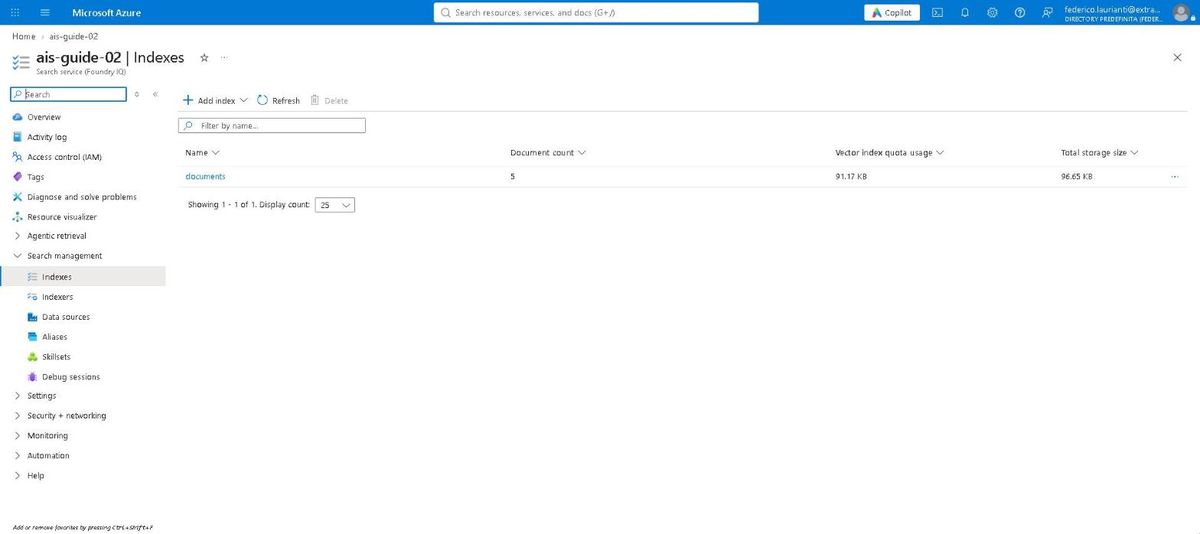
In the search service open Search management → Indexes: documents is there with 5 documents.
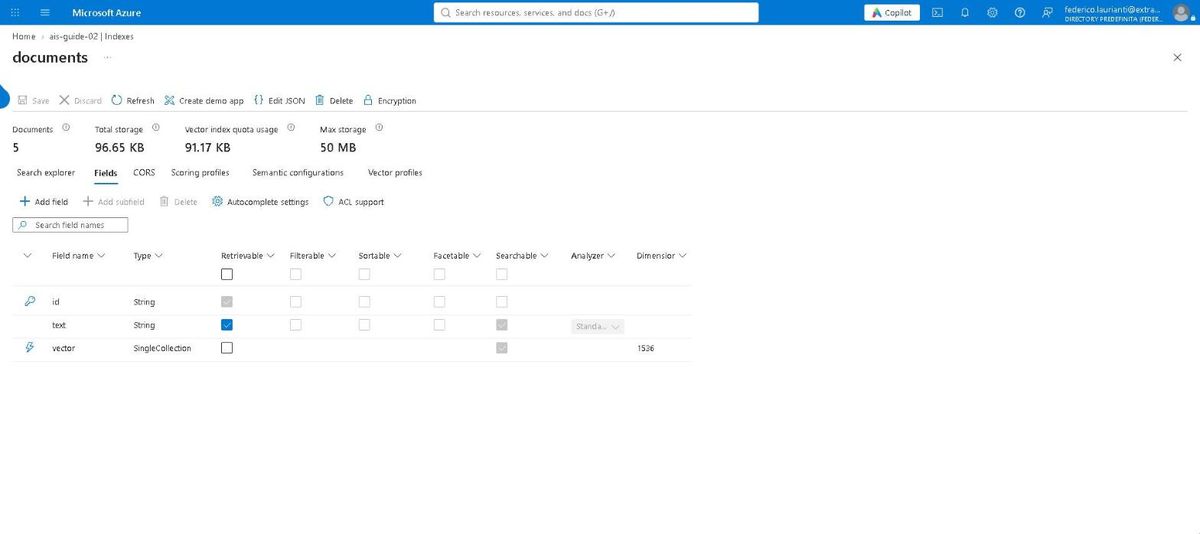
Open it and the Fields tab shows the three fields: the key, the text and the vector field with its dimension, 1536.
10. Searching by words, for comparison
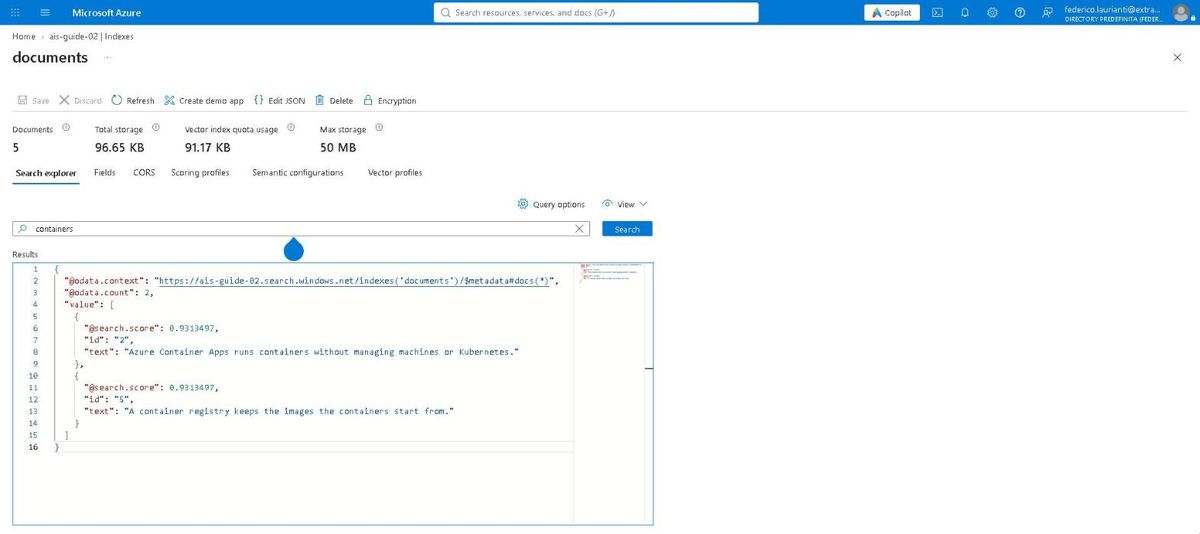
In the Search explorer tab type containers and press Search: two documents come back, the ones that contain the word. Searching by words finds words; searching by vectors finds meaning.
Delete the resources
11. Delete the resource group
Open rg-guide-ais-02: it holds the search service and the model resource.
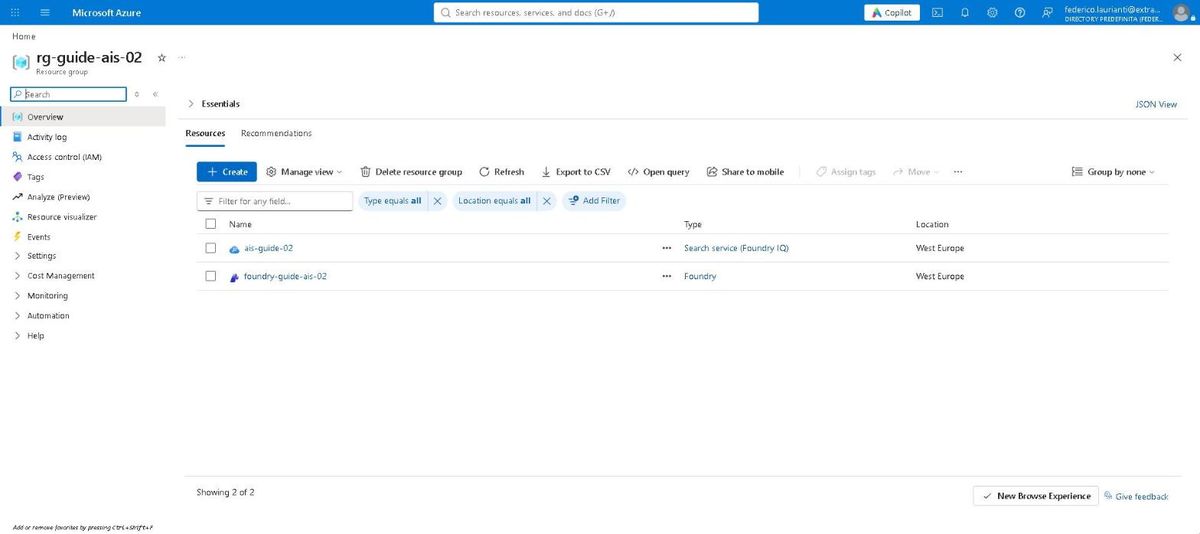
Press Delete resource group, type the group name again and press Delete.
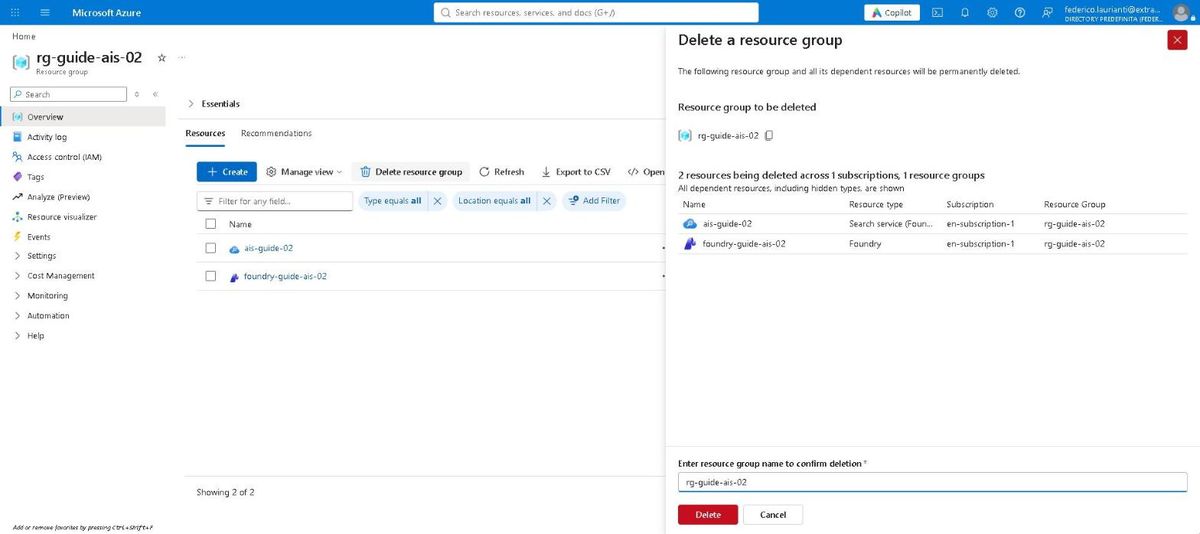
Confirm in the dialog that appears.
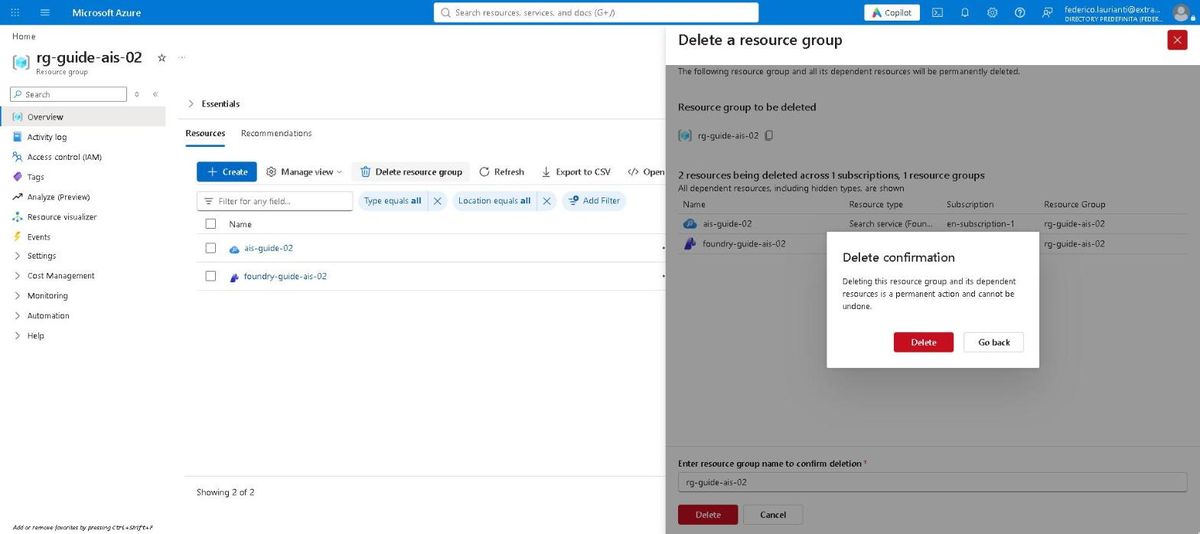
Once the group is gone the model resource stays soft-deleted and its name cannot be reused. To free it right away:
az cognitiveservices account purge \
  --name foundry-guide-ais-02 \
  --location westeurope \
  --resource-group rg-guide-ais-02
Command names and screenshots taken on the Azure portal on 4 November 2026, West Europe region, with .NET 10.0.401 and the Azure command-line interface 2.91.0.