


Procedure to publish a .NET API on Azure Container Apps starting from an empty project. Azure builds the image, so Docker is not needed on the computer, and the app pulls the image from the registry with a managed identity, with no keys.
Required: an Azure account with an active subscription, .NET 10 and the Azure command-line interface on the computer, a browser. Duration: about forty minutes, mostly waiting for the environment. Cost: a Basic registry costs 0.17 USD a day; the app is billed per use, with 0.56 USD per million requests, and with minimum replicas at zero it consumes nothing while nobody calls it.
The portal in the screenshots is in English: command names are reported as they appear on screen.
Prepare the application
1. Create the project
dotnet new webapi -n api-demo
cd api-demo
The template creates an API with a single endpoint, /weatherforecast. No changes are needed.
2. Run it locally
dotnet run --launch-profile httpOpen http://localhost:5291/weatherforecast: it answers with five forecasts in JSON. Stop the app with Ctrl+C.
3. Write the Dockerfile
In the project folder, next to api-demo.csproj:
FROM mcr.microsoft.com/dotnet/sdk:10.0 AS build
WORKDIR /src
COPY api-demo.csproj .
RUN dotnet restore
COPY . .
RUN dotnet publish -c Release -o /app

FROM mcr.microsoft.com/dotnet/aspnet:10.0
WORKDIR /app
COPY --from=build /app .
EXPOSE 8080
ENTRYPOINT ["dotnet", "api-demo.dll"]
A .dockerignore is needed too, otherwise the folders built locally end up in the image and the build inside the container fails:
bin/
obj/
The aspnet:10.0 image listens on port 8080: that is the number to repeat in step 9.
Build the image on Azure
4. Create the registry
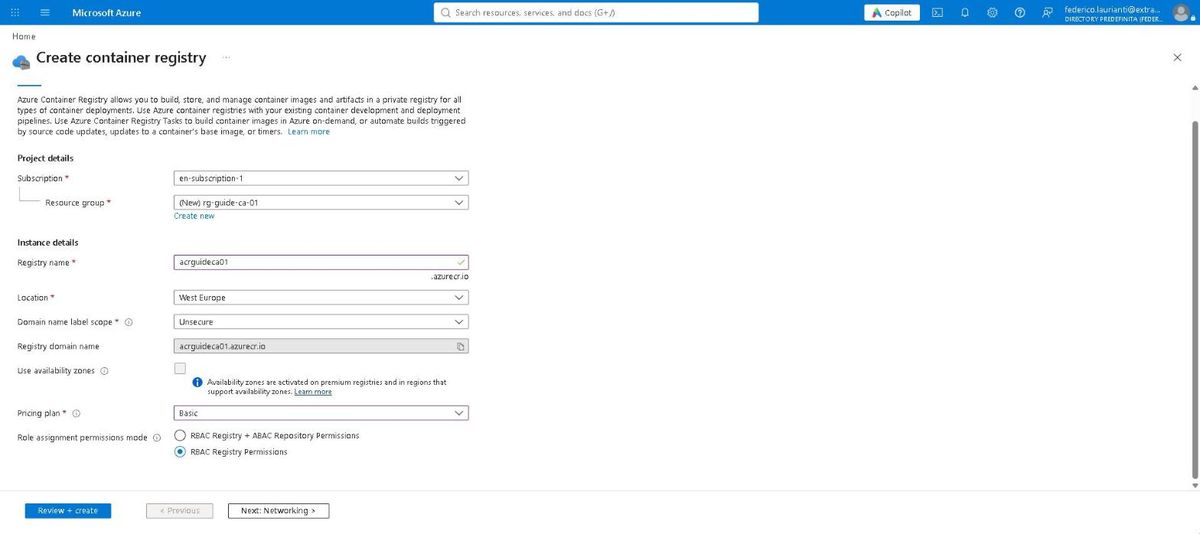
On portal.azure.com, search for Container registries and press + Create. Under Resource group press Create new and type the name: the group is created here, not beforehand.
| Field | Value |
|---|---|
| Resource group | rg-guide-ca-01 (new) |
| Registry name | acrguideca01 |
| Location | West Europe |
| Pricing plan | Basic |
The registry name has to be unique across Azure and takes letters and digits only. Press Review + create, then Create.
5. Build the image
From the project folder:
az login
az acr build --registry acrguideca01 --image api-demo:1.0 .
The command uploads the folder to Azure, builds the image there and leaves it in the registry: Docker is not needed on the computer. In this run the build took 49 seconds.
6. Check the image
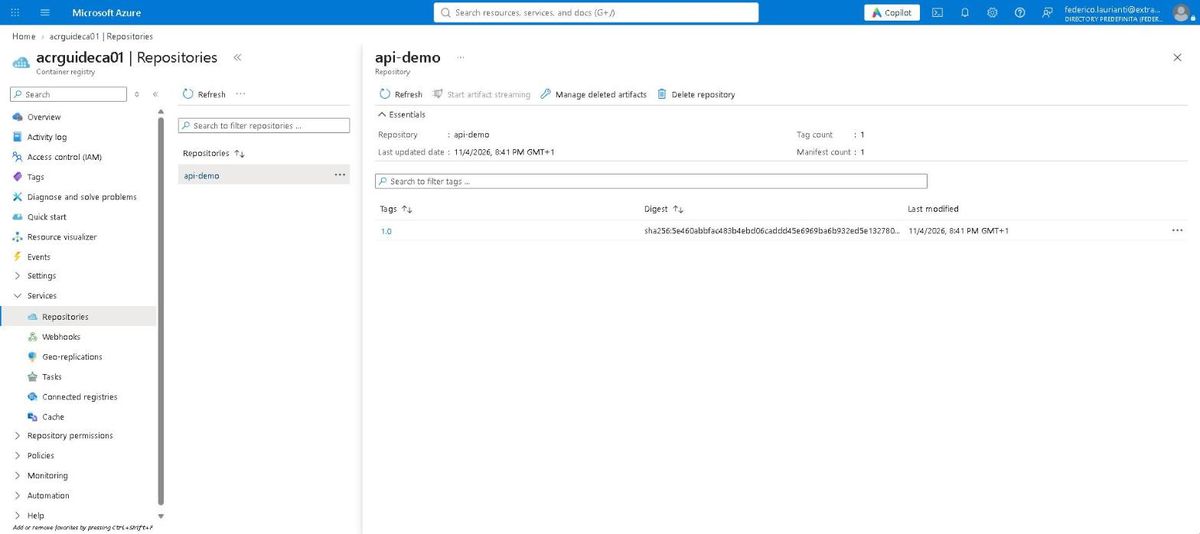
In the registry open Repositories and press api-demo. The pane reports the 1.0 tag and the image digest.
Create the app
7. Basics
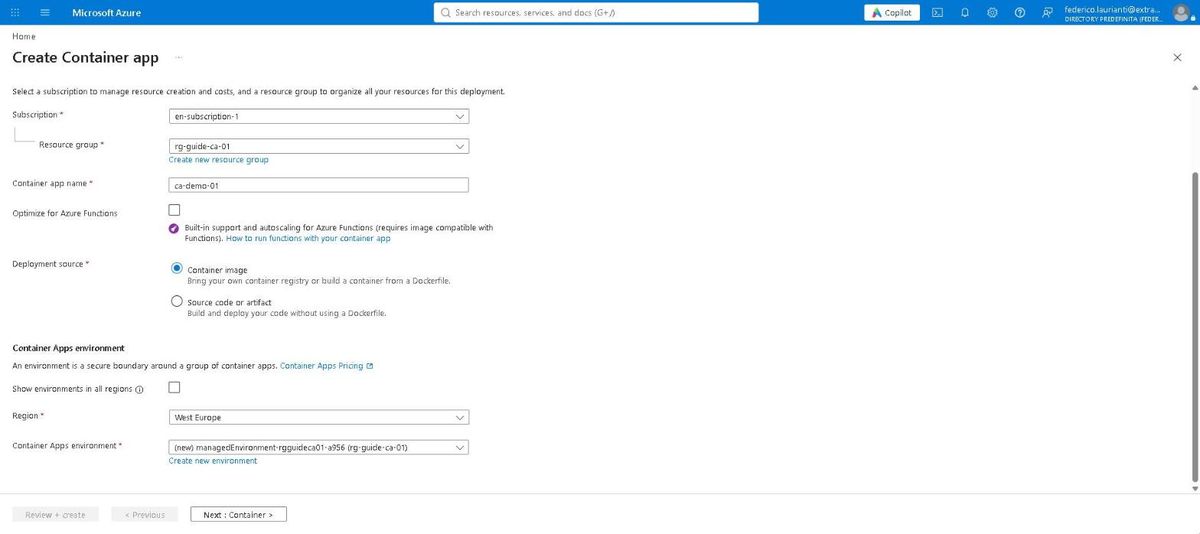
Search for Container Apps, press + Create and fill in the first tab.
| Field | Value |
|---|---|
| Resource group | rg-guide-ca-01 |
| Container app name | ca-demo-01 |
| Deployment source | Container image |
| Region | West Europe |
The environment is proposed as new, with a generated name: leave it.
8. Pick the image
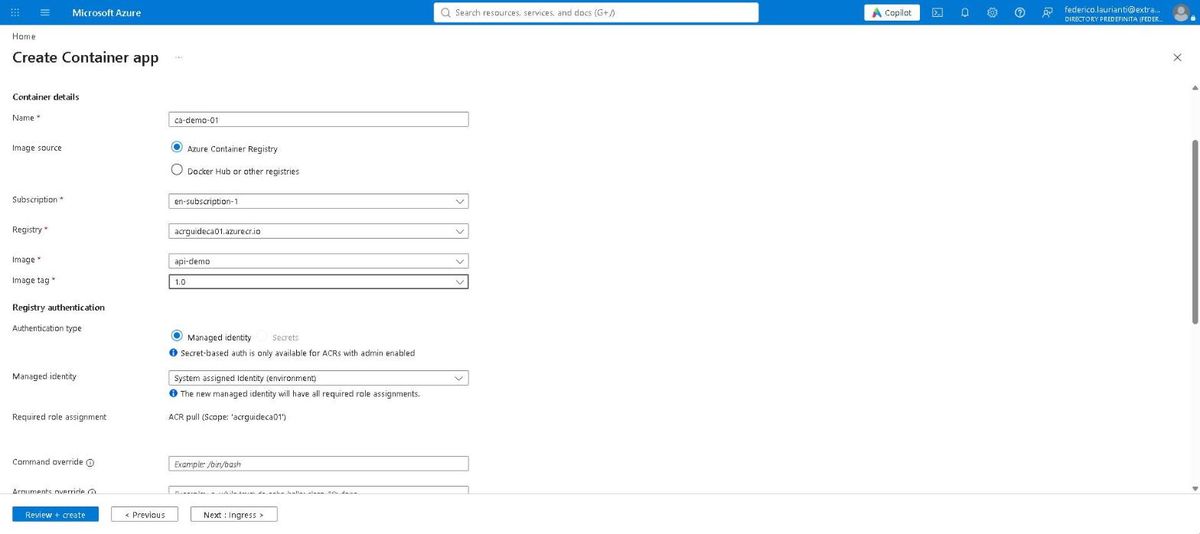
Move to Container and point at the image just built.
| Field | Value |
|---|---|
| Image source | Azure Container Registry |
| Registry | acrguideca01.azurecr.io |
| Image | api-demo |
| Image tag | 1.0 |
| Authentication type | Managed identity |
| Managed identity | System assigned identity (environment) |
With a managed identity there are no keys to copy: the portal assigns the ACR pull role on the registry by itself, as it states under the field.
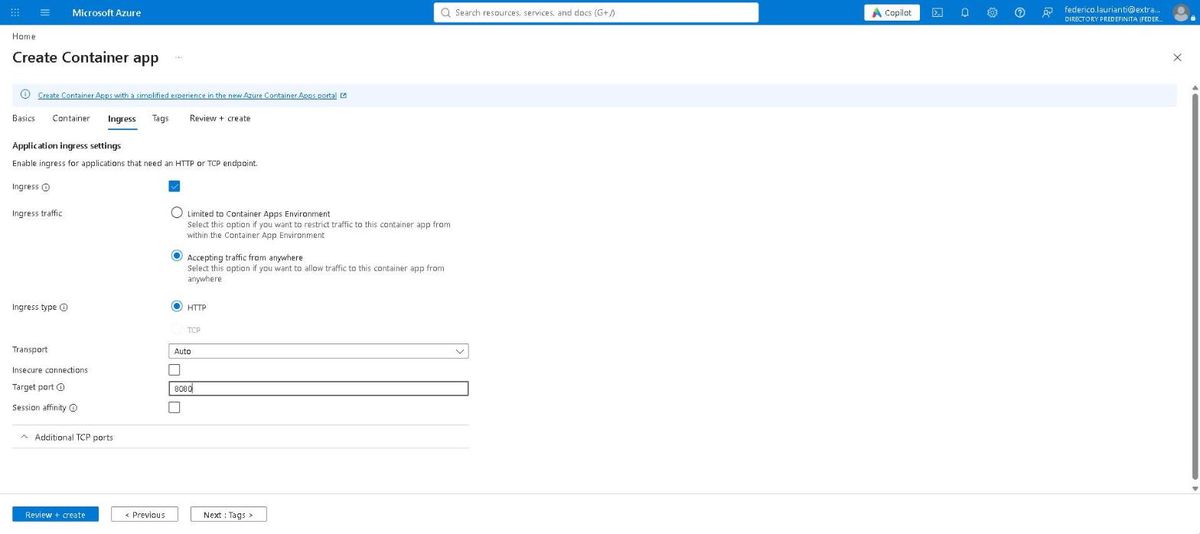
9. Open the port
Move to Ingress and tick the Ingress box.
| Field | Value |
|---|---|
| Ingress traffic | Accepting traffic from anywhere |
| Ingress type | HTTP |
| Target port | 8080 |
Target port is the port the container listens on, not the one callers use: from outside it is always HTTPS on 443. If the number does not match the container's, the app is created all the same but its address does not answer.
10. Create it and wait
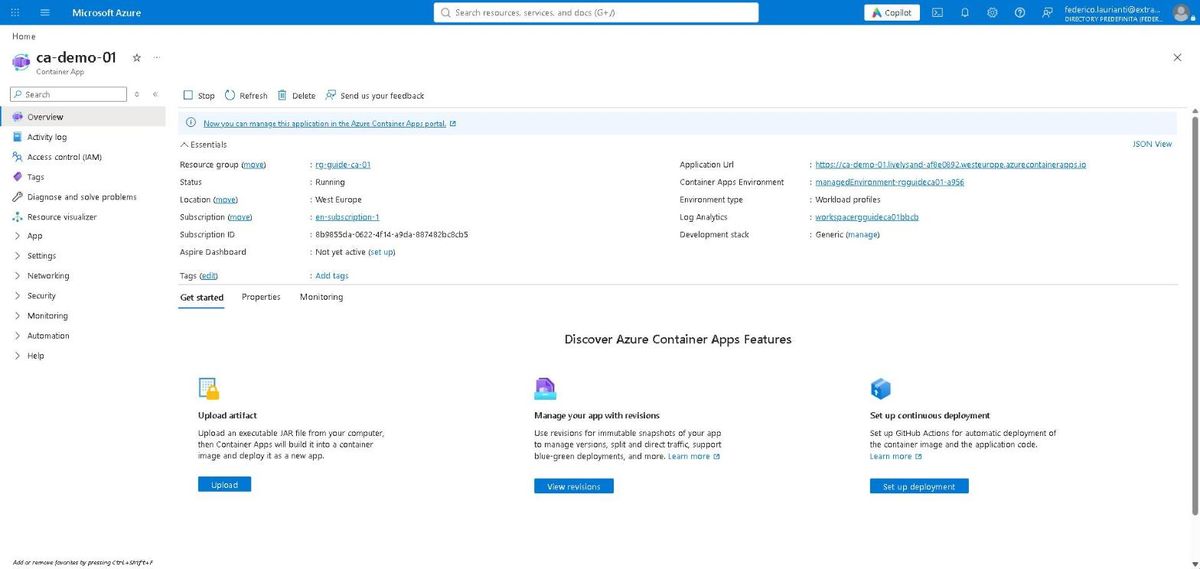
Press Review + create, then Create. Four objects end up in the group: the registry was already there, and this step adds the environment, the log workspace and the app. In this run it took about fifteen minutes, mostly for the environment.
Once it is done, open the resource: Essentials gives the Running status and the public address.
Test it
11. Call the API
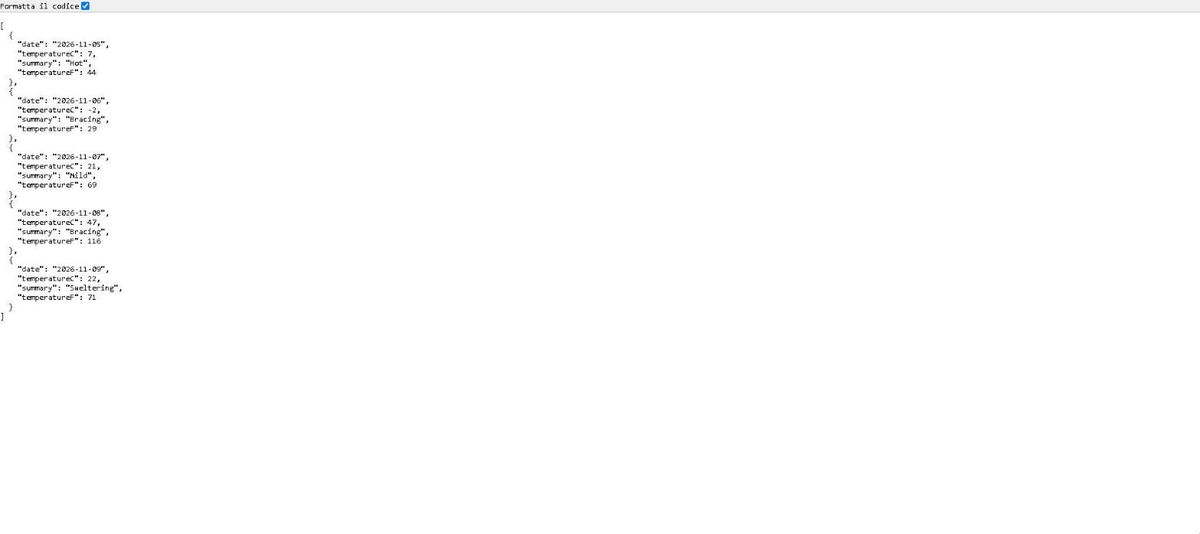
Open the app address with /weatherforecast appended. It answers with the same JSON as the local run.
12. Scaling and logs
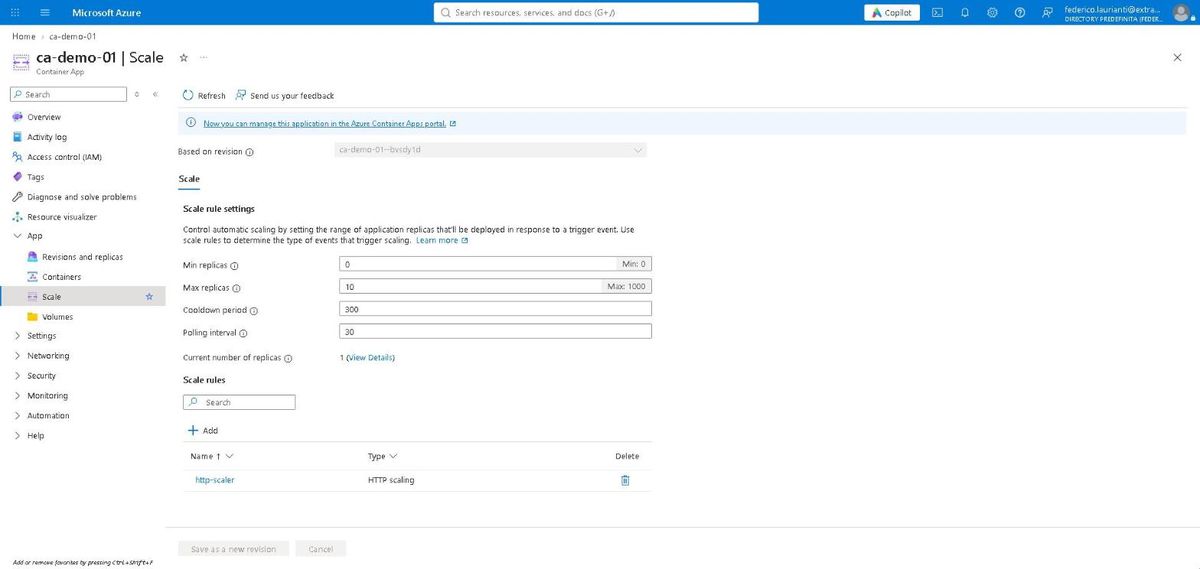
Under App → Scale you find the rule created automatically: Min replicas at 0, Max replicas at 10 and an http-scaler rule. With the minimum at zero, after five minutes without requests the app shuts down and the next request wakes it up.
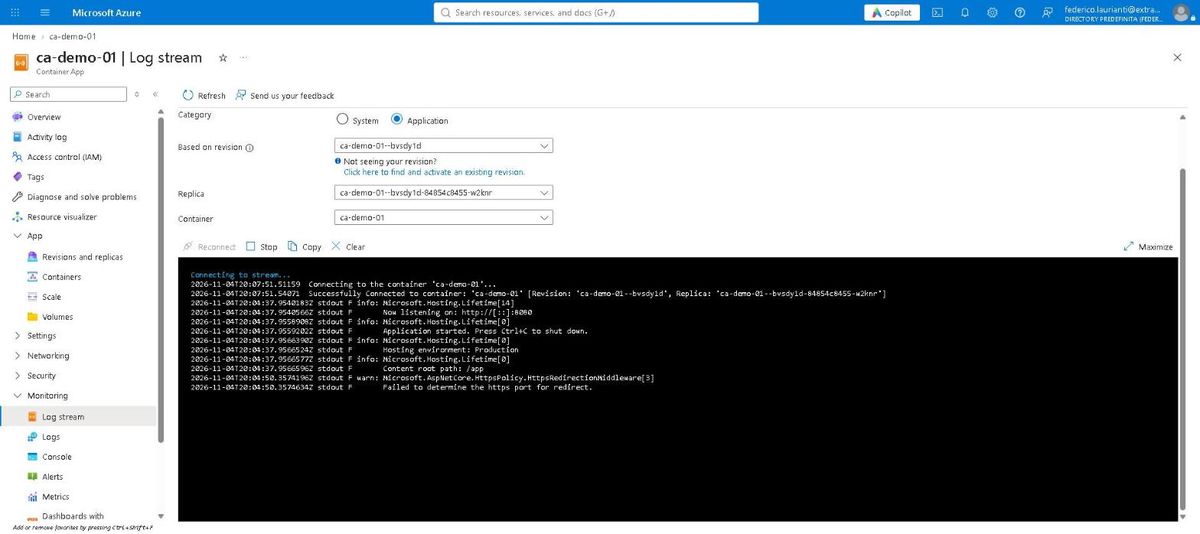
Under Monitoring → Log stream you can read the container starting:
Now listening on: http://[::]:8080
Hosting environment: Production
Content root path: /app
warn: Microsoft.AspNetCore.HttpsPolicy.HttpsRedirectionMiddleware[3]
      Failed to determine the https port for redirect.
The warning appears because the project template calls UseHttpsRedirection and there is no HTTPS port inside the container: encrypted traffic stops at the Container Apps ingress. It blocks nothing, the API answers all the same. To stop seeing it, apply UseHttpsRedirection in development only.
Delete the resources
13. Delete the resource group
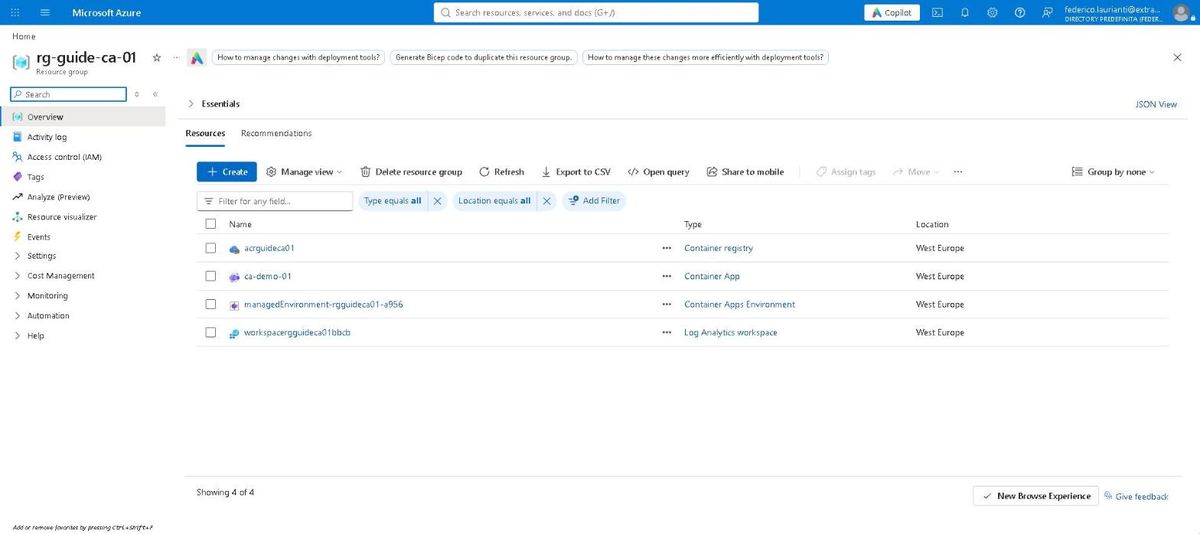
Open rg-guide-ca-01: it holds four resources.
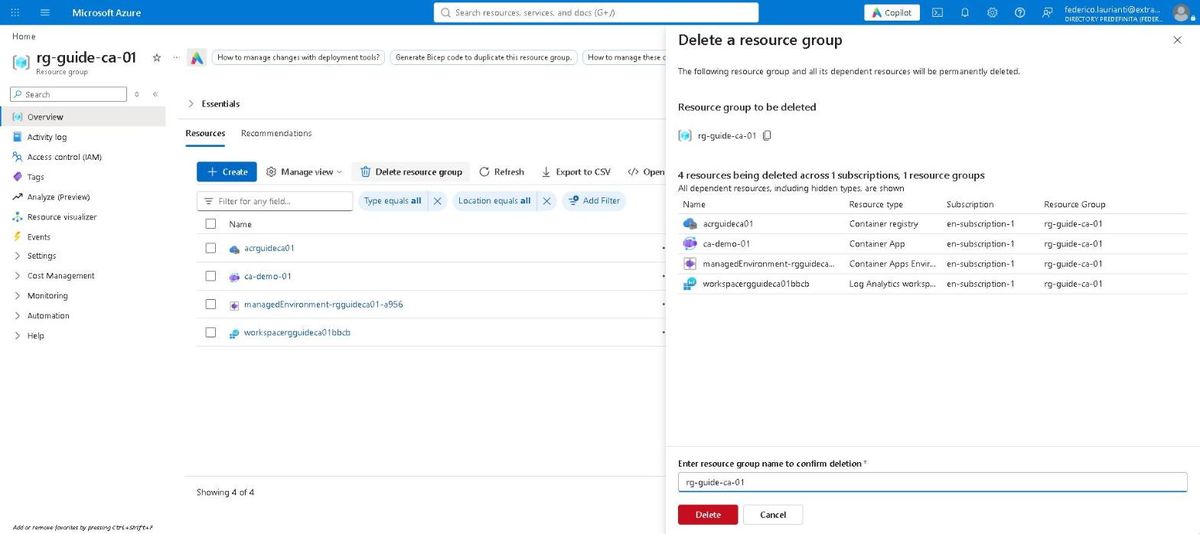
Press Delete resource group. The panel lists the resources and asks you to type the group name again.
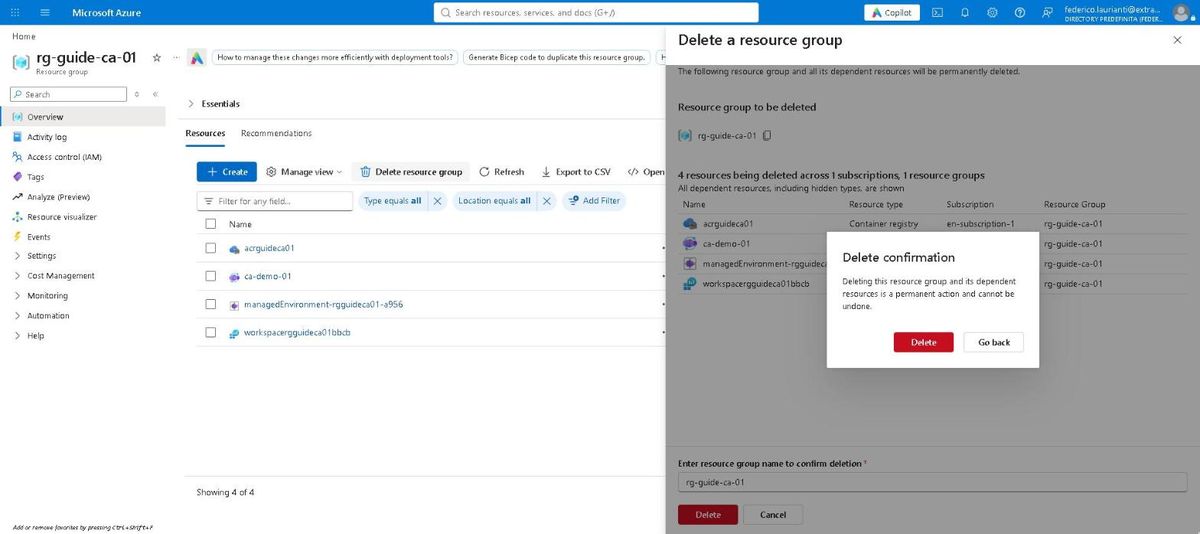
Press Delete and confirm in the dialog that appears.
As long as the group exists, the registry keeps being billed even while the app is shut down.
Prices, command names and screenshots taken on the Azure portal on 4 November 2026, West Europe region, with .NET 10.0.401 and the Azure command-line interface 2.91.0.