


Procedure to write an HTTP function in .NET 10, try it on your computer and publish it to Azure Functions on the Flex Consumption plan, which is billed by usage. Resources are created, tested and deleted from the Azure portal; your computer is used to write the program and upload the package.
You need: an Azure account with an active subscription, .NET 10, the Azure command-line interface and Azure Functions Core Tools 4.16 or later on your computer. Time: about twenty minutes. Cost: a few cents, if you delete the resources at the end.
The portal in the screenshots is in English: command names are written as they appear on screen.
The function
1. Create the project
func init func-demo --worker-runtime dotnet-isolated --target-framework net10.0
cd func-demo
func new --template "HTTP trigger" --name Hello --authlevel function
2. Write the code
It replaces Hello.cs:
using Microsoft.AspNetCore.Http;
using Microsoft.AspNetCore.Mvc;
using Microsoft.Azure.Functions.Worker;

namespace func_demo;

public class Hello
{
    [Function("Hello")]
    public IActionResult Run(
        [HttpTrigger(AuthorizationLevel.Function, "get")] HttpRequest req)
    {
        string name = req.Query["name"].FirstOrDefault() ?? "world";
        return new OkObjectResult($"Hello, {name}!");
    }
}
AuthorizationLevel.Function means that on Azure the function only answers callers presenting a key.
3. Try it on your computer
func start --port 7077Open http://localhost:7077/api/Hello?name=Extra-Net:
Hello, Extra-Net!On your computer the key is not checked.
On Azure
4. Choose the plan
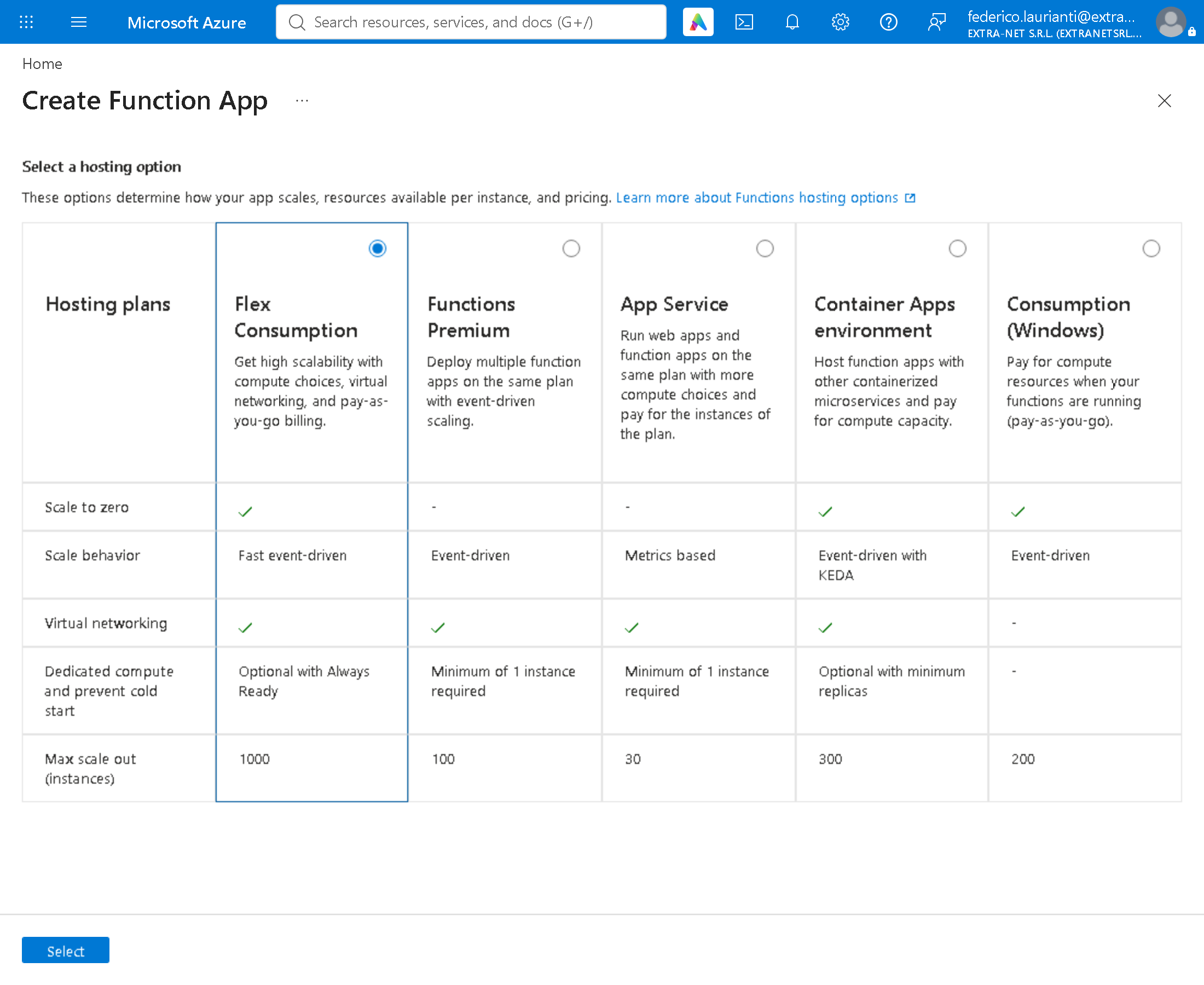
Open https://portal.azure.com/#create/Microsoft.FunctionApp. Leave Flex Consumption selected and press Select.
5. Create the Function App
On the Basics tab fill in:
- Resource Group: Create new,
rg-guide-func-01, OK - Function App name: a name of your own, here
fn-guide-extranet-01 - Region: West Europe
- Runtime stack: .NET
- Version: 10 (LTS), isolated worker model
- Instance size: 2048 MB
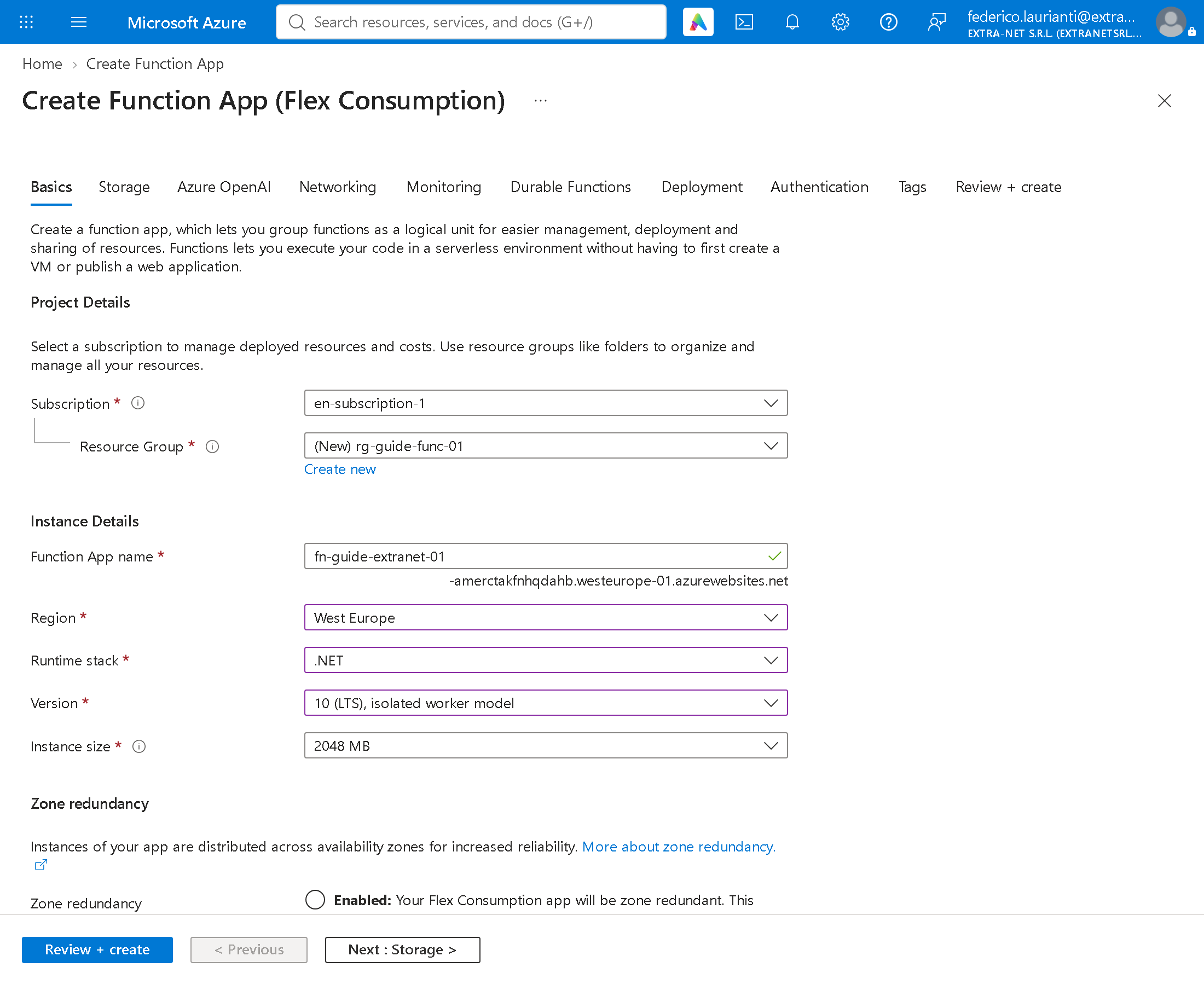
Press Review + create. The other tabs stay as they are: the portal proposes the storage account and the plan by itself.
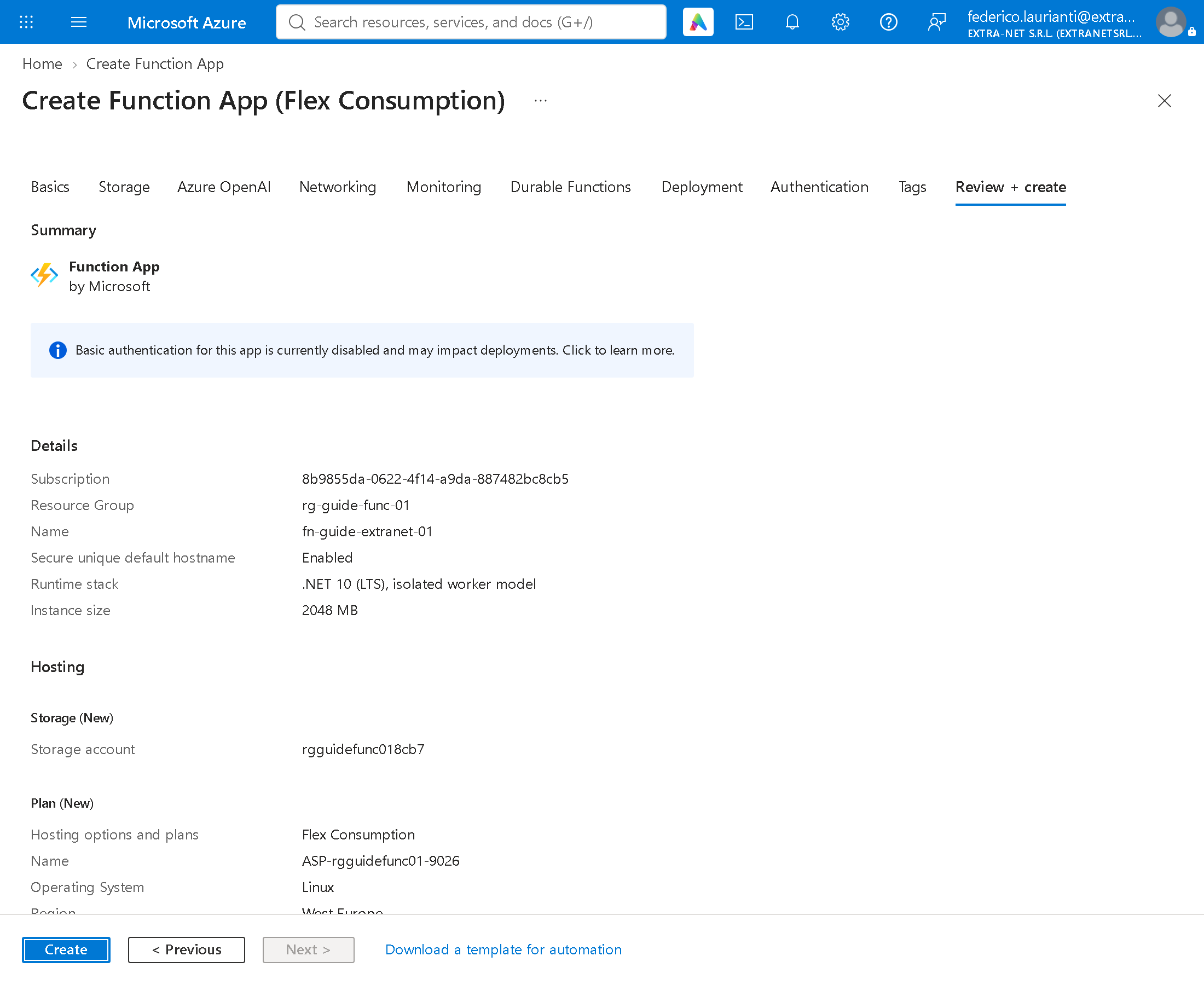
Press Create and wait for Your deployment is complete.
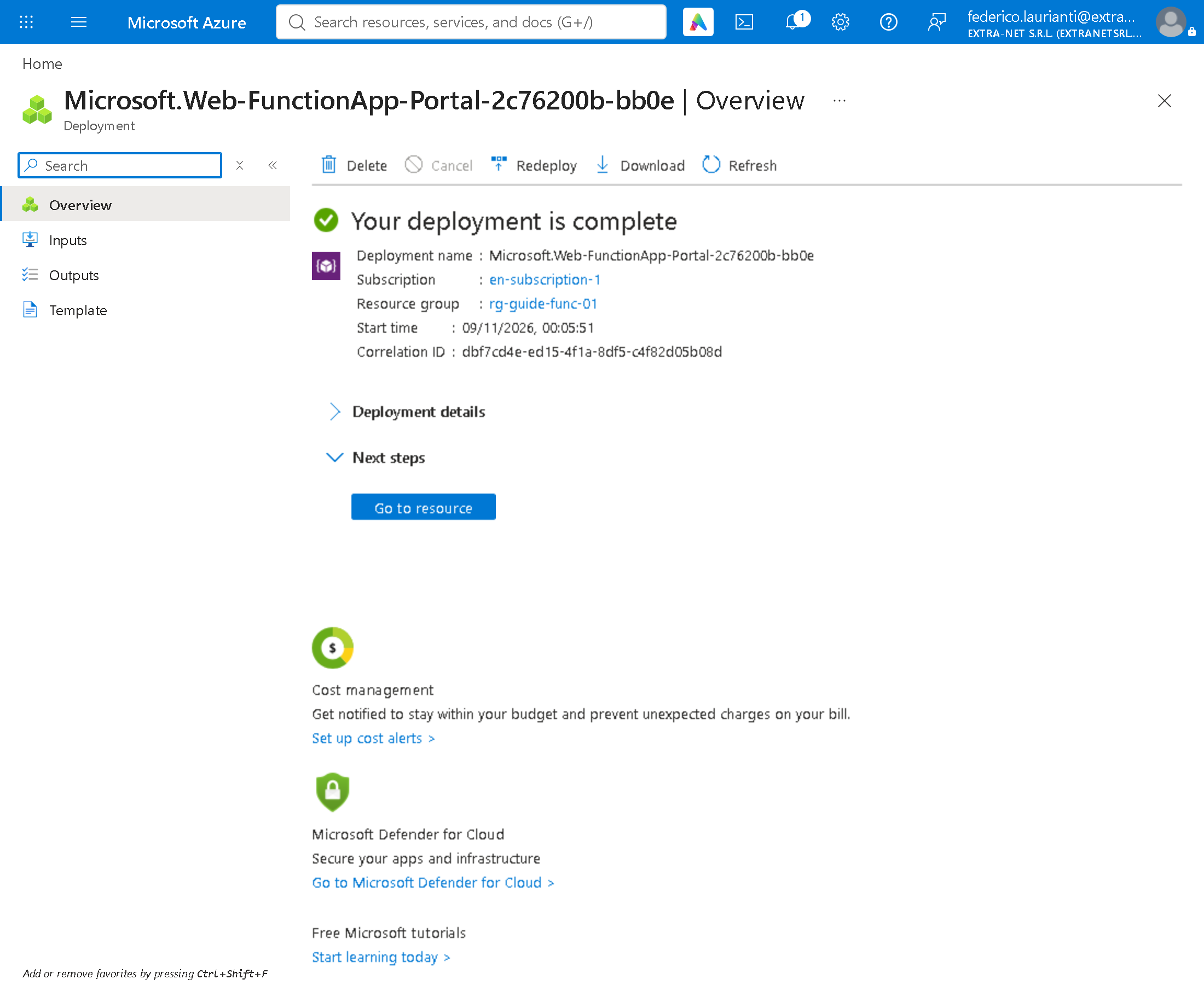
6. Upload the program
From the project folder:
dotnet publish -c Release -o publish
cd publish
zip -r ../func-demo.zip .
cd ..
az functionapp deployment source config-zip -n fn-guide-extranet-01 \
  -g rg-guide-func-01 --src func-demo.zip
In PowerShell, instead of the zip line, use tar -a -cf ../func-demo.zip .. The package must contain the hidden .azurefunctions folder: in this run Compress-Archive left it out and Azure rejected the package.
In this run on Windows, func azure functionapp publish from Core Tools 4.16.0 stopped with The underlying compression routine could not be loaded correctly: that is why this procedure uploads the package with az. The upload took 79 seconds.
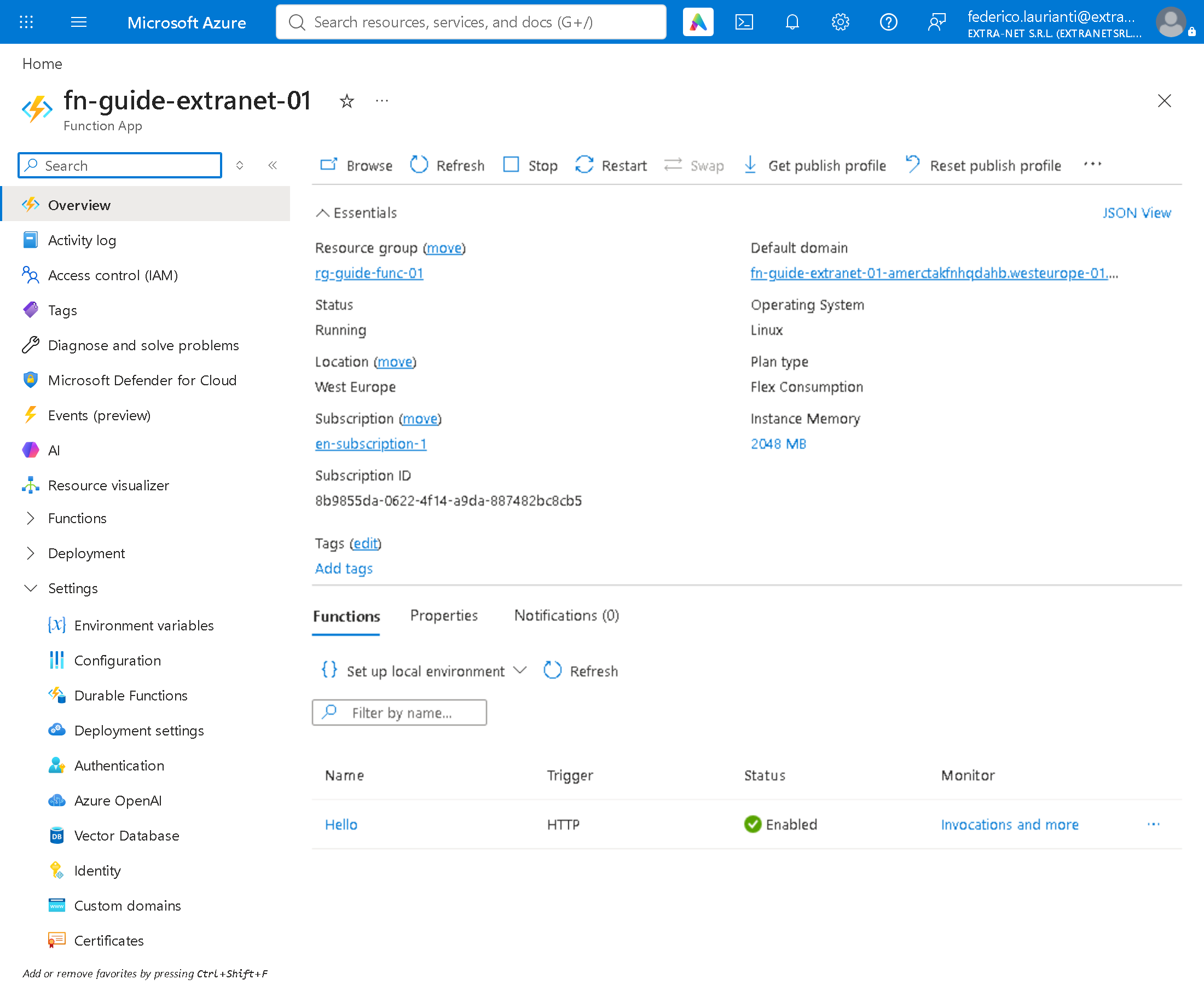
In the portal open the Function App: under Overview, on the Functions tab, Hello appears. Default domain holds the application's address: the name you chose, followed by a part generated by Azure.
7. Test from the portal
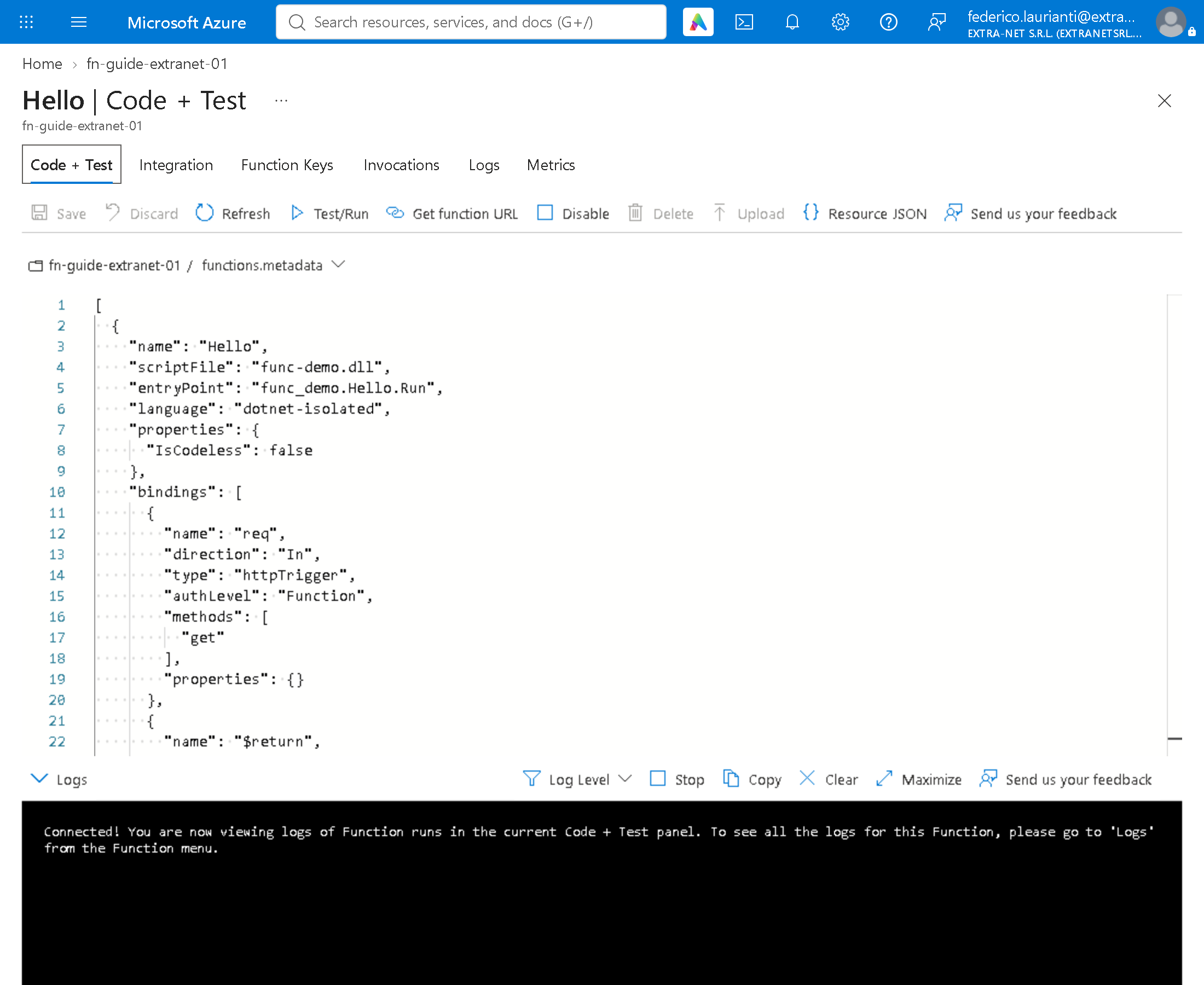
Press Hello. The Code + Test page opens: an already compiled .NET program cannot be edited here.
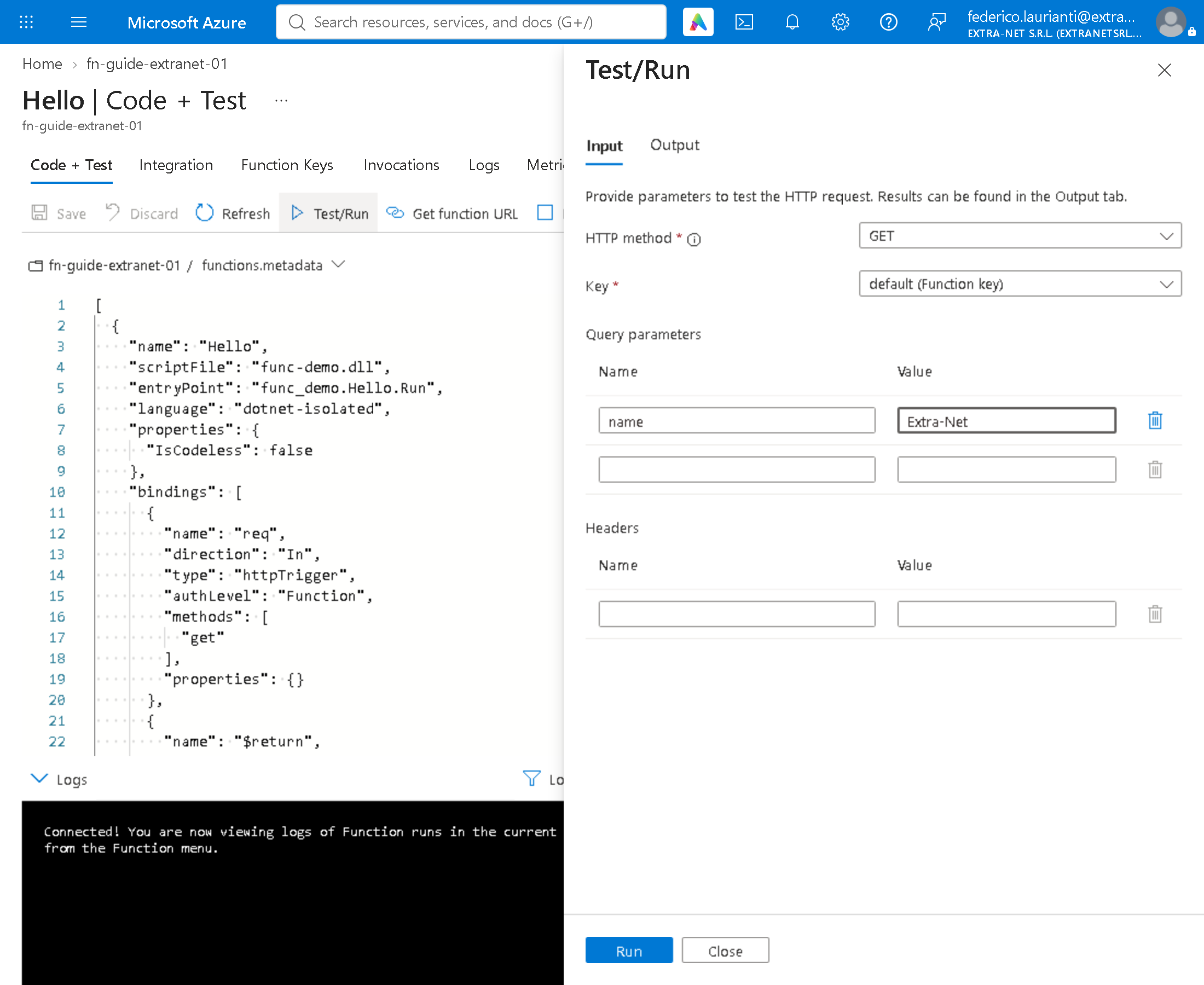
Press Test/Run and fill in:
- HTTP method: GET
- Key: default (Function key)
- Query parameters: Name
name, ValueExtra-Net
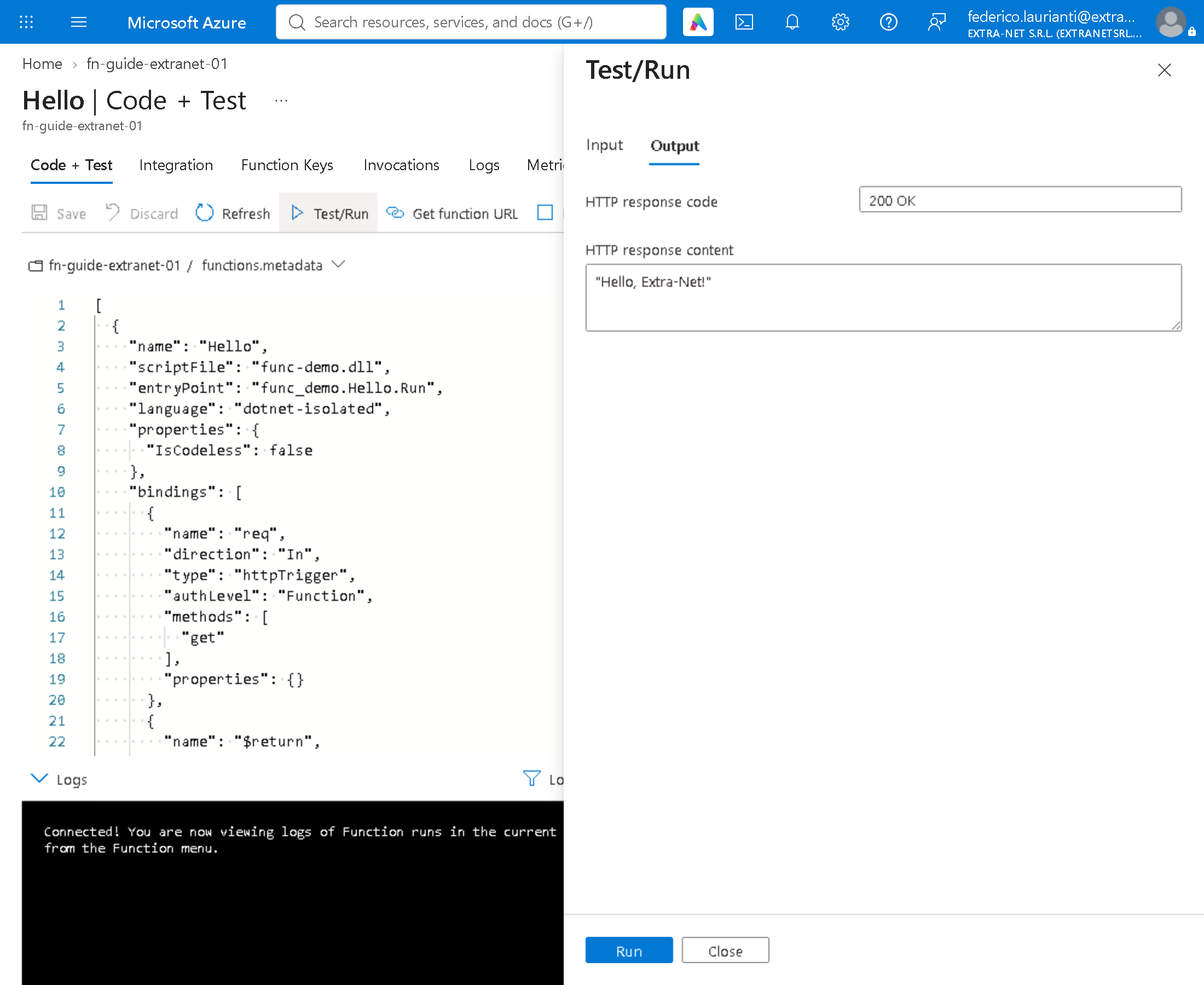
Press Run. On the Output tab:
8. Try without a key
Copy the Default domain address and open https://<address>/api/Hello?name=Extra-Net in the browser, with no key. Azure answers 401: the function exists, but without a key it does not answer. That is the right behaviour.
9. Find the key
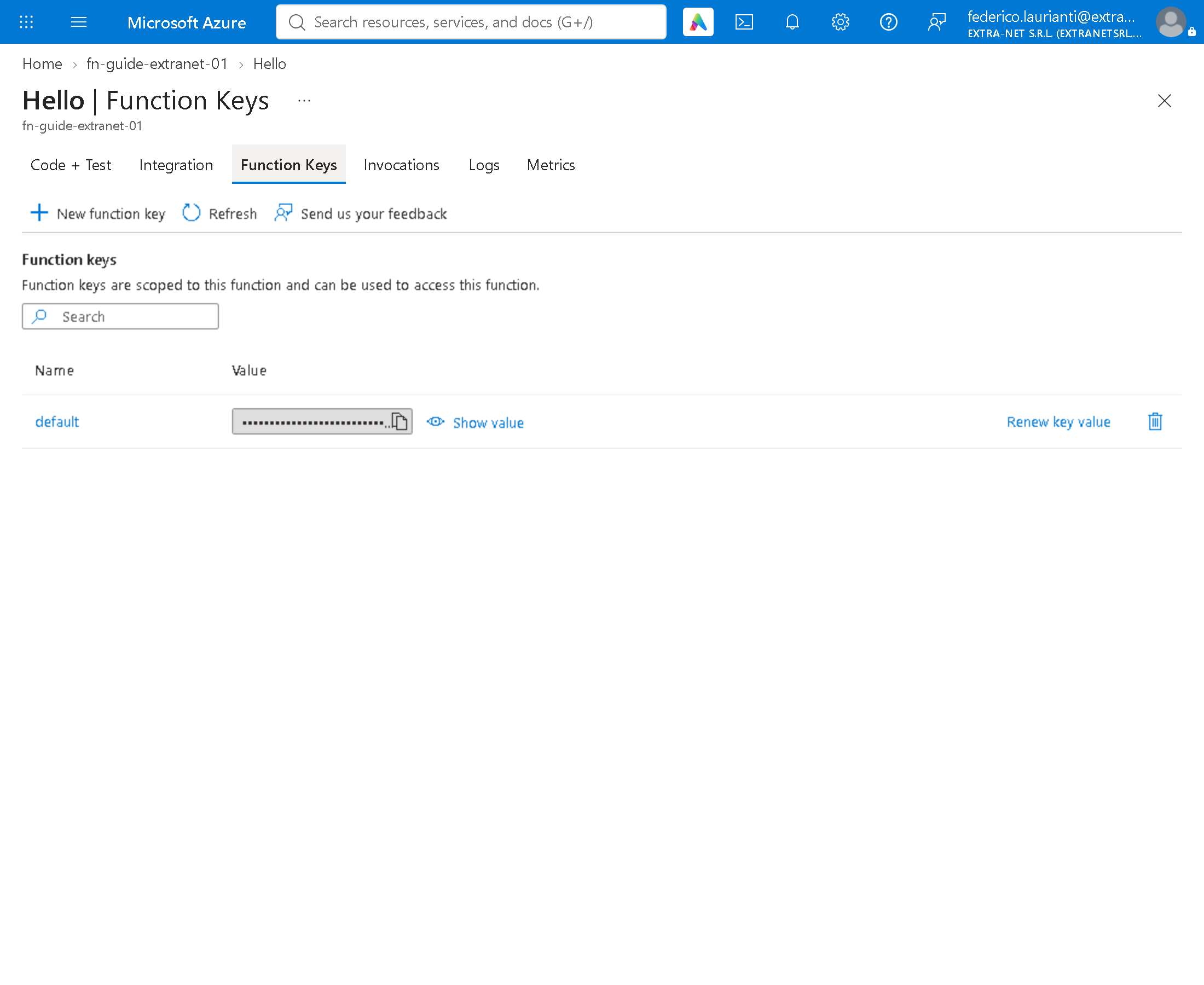
In the function open Function Keys. The value stays hidden until you press Show value. You pass it by adding &code=<key> to the address. The key grants access to the function: do not write it in the code and do not publish it.
Delete the resources
10. Delete the group
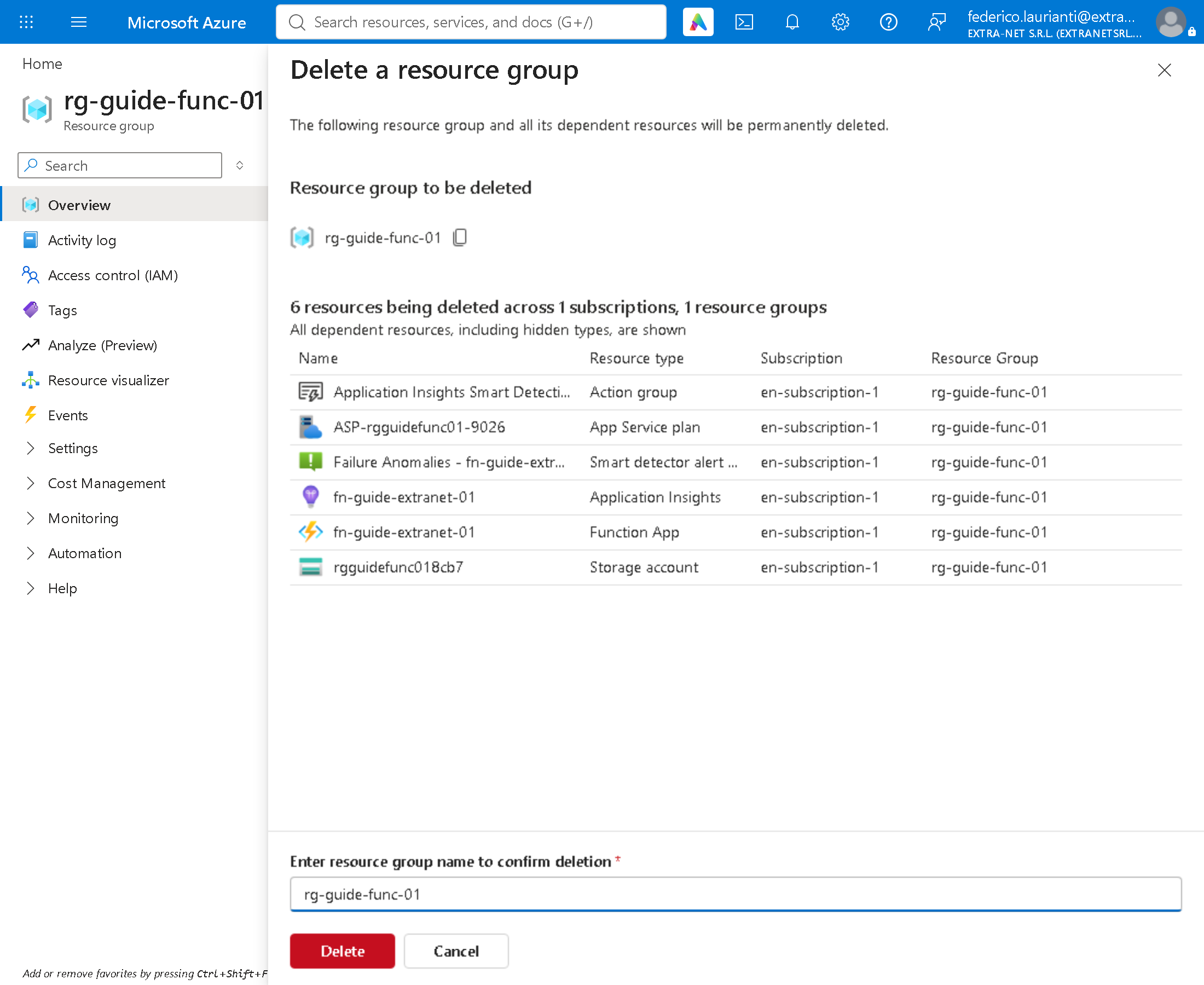
Open the rg-guide-func-01 group. It holds six resources, all created by the portal: plan, Function App, storage account, Application Insights and two alerting items.
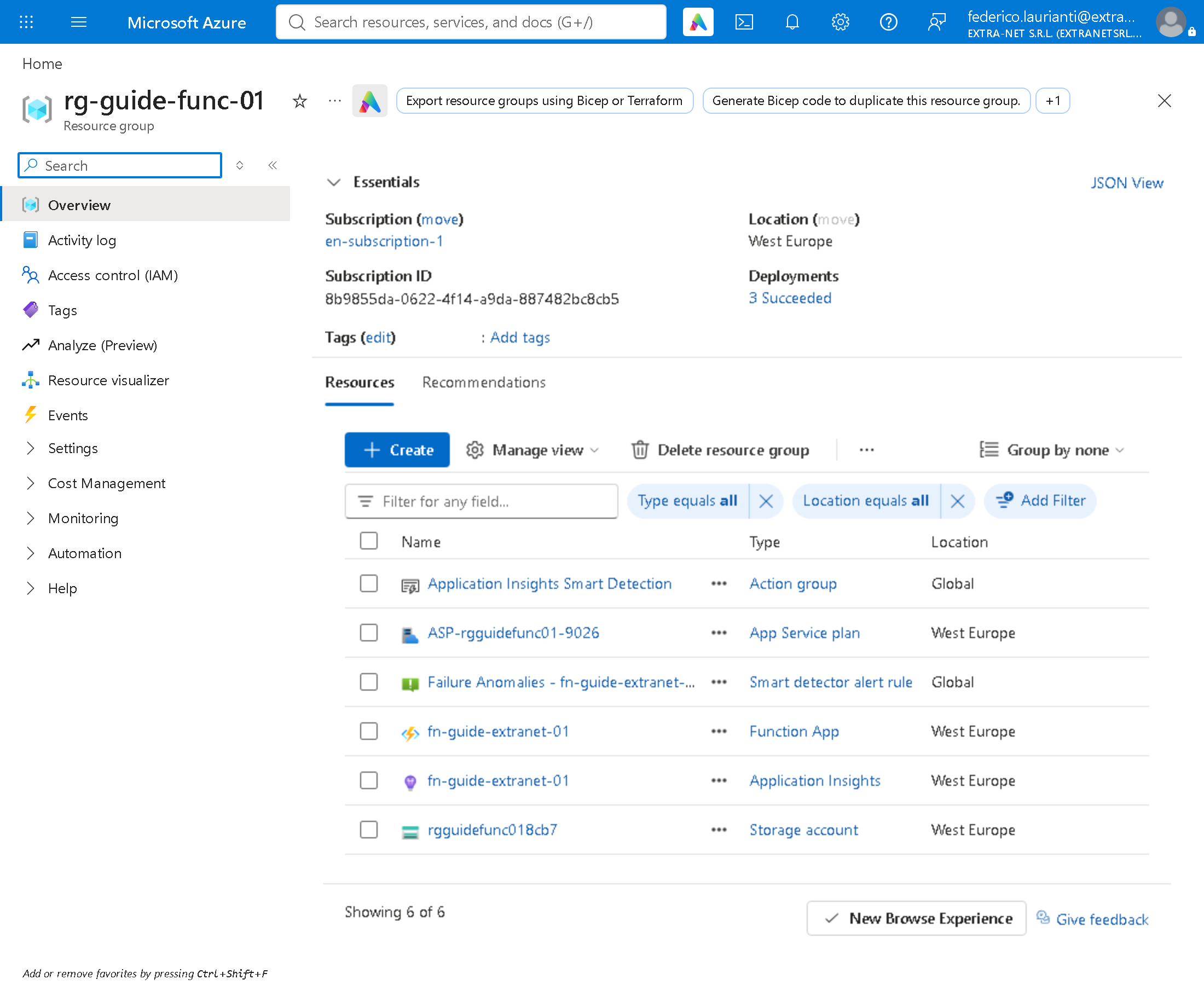
Press Delete resource group, type the group name to confirm, press Delete and, in the window that follows, Delete again.
Command names, screenshots and answers recorded on 9 November 2026, West Europe region, with .NET 10.0.401, Azure Functions Core Tools 4.16.0 and the Azure command-line interface 2.91.0.