


Procedure to see every call to a deployed model: how long it takes, how many fail and what it predicts. An ASP.NET Core API calls the model and, with OpenTelemetry, sends to Application Insights the requests, the calls to the model and a counter of the predictions by species. A .NET console imitates two clients: a correct one and one that forgets one of the four measures of the flower.
You need: the mlw-guide-extranet-01 workspace with the iris-model model registered in version 2, that is steps 1 to 8 of the guide Train a neural network on Azure Machine Learning and call it from .NET, and .NET 11 on your computer.
Time: about an hour, half of it waiting for the model deployment.
Cost: less than one dollar, if you delete the resources at the end. The Azure price list shows 0.115 dollars an hour for the endpoint machine and, for Log Analytics data, 0 dollars up to 5 GB and 2.99 dollars per GB beyond; in the whole test the data was less than 1 MB.
The portal in the screenshots is in English: command names are written as they appear on screen.
The model and Application Insights
1. Deploy the model
In the studio open Models > iris-model, version 2, press Use this model > Real-time endpoint and fill in:
- Instance count:
1 - Virtual machine:
Standard_D2as_v4, the proposed one - Endpoint: New
- Endpoint name: a name of your own, unique in the region, here
iris-otel-extranet-01 - Deployment name:
blue
Press Deploy. In Endpoints > iris-otel-extranet-01, Consume tab, copy REST endpoint and Primary key. The key gives access to the model: do not write it in the code and do not publish it.
2. Turn on metric dimensions
On the Azure portal open the Application Insights created with the Azure Machine Learning workspace, in the rg-guide-ml-01 group: its name starts with mlwguideinsights. In the menu press Configure > Usage and estimated costs > Custom metrics (Preview), choose With dimensions and press OK.
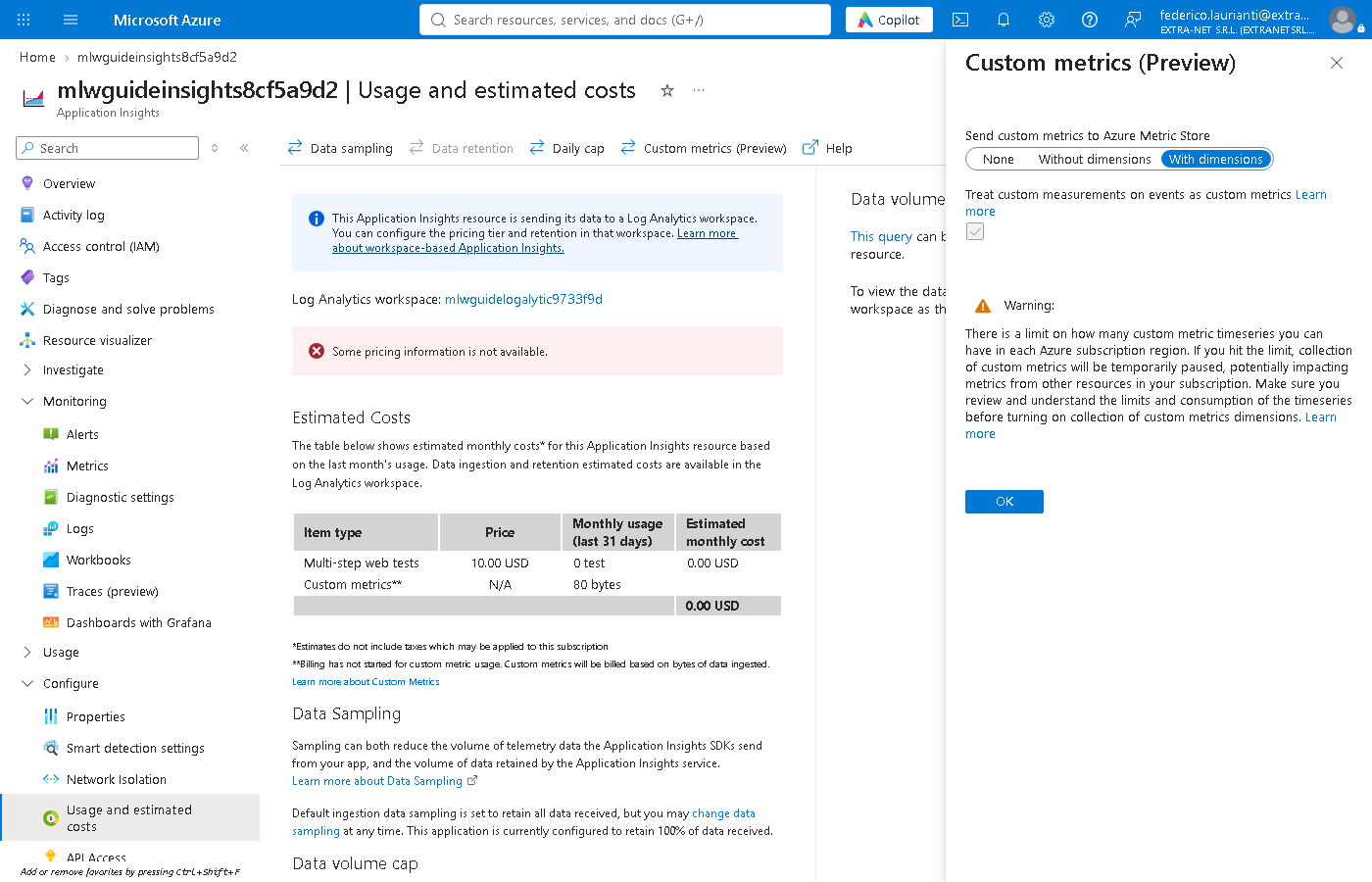
Without this step the prediction counter reaches Metrics without the species and Apply splitting stays disabled. In the test the setting applied only to the data that arrived afterwards.
3. Copy the connection string
In the menu press Overview and copy Connection string. The API uses it to send the data to this Application Insights.
The API
4. Create the API
dotnet new web -n iris-api
cd iris-api
dotnet add package Azure.Monitor.OpenTelemetry.AspNetCore
In the test the package was at version 1.6.0. Replace Program.cs:
using System.Diagnostics;
using System.Diagnostics.Metrics;
using System.Net.Http.Headers;
using Azure.Monitor.OpenTelemetry.AspNetCore;
using OpenTelemetry.Metrics;
using OpenTelemetry.Resources;

string scoringUri = Environment.GetEnvironmentVariable("SCORING_URI")!;
string key = Environment.GetEnvironmentVariable("ENDPOINT_KEY")!;
string[] species = ["setosa", "versicolor", "virginica"];

var builder = WebApplication.CreateBuilder(args);
builder.Services.AddOpenTelemetry()
    .ConfigureResource(resource => resource.AddService("iris-api"))
    .UseAzureMonitor()
    .WithMetrics(metrics => metrics.AddMeter("Iris"));

var app = builder.Build();

HttpClient model = new();
model.DefaultRequestHeaders.Authorization = new AuthenticationHeaderValue("Bearer", key);

Meter meter = new("Iris");
Counter<long> predictions = meter.CreateCounter<long>("iris.predictions");

app.MapPost("/classify", async (Dictionary<string, double> flower) =>
{
    var body = new { input_data = new { columns = flower.Keys, index = new[] { 0 }, data = new[] { flower.Values } } };
    using HttpResponseMessage response = await model.PostAsJsonAsync(scoringUri, body);
    if (!response.IsSuccessStatusCode)
    {
        return Results.StatusCode(502);
    }

    var probabilities = await response.Content.ReadFromJsonAsync<Dictionary<string, double>[]>();
    string name = species[int.Parse(probabilities![0].MaxBy(p => p.Value).Key)];
    Activity.Current?.SetTag("iris.species", name);
    predictions.Add(1, new KeyValuePair<string, object?>("species", name));
    return Results.Ok(new { species = name });
});

app.Run();
UseAzureMonitor sends to Application Insights the requests that reach the API, the calls the API makes to the model and the metrics; AddService gives the iris-api name shown in the map. For each prediction the API writes the species on the request, as iris.species, and adds 1 to the iris.predictions counter, with the species dimension. If the model answers with an error, the API answers 502.
5. Start the API
Set the three variables with the values copied in steps 1 and 3 and run:
export SCORING_URI=https://iris-otel-extranet-01.westeurope.inference.ml.azure.com/score
export ENDPOINT_KEY=<key>
export APPLICATIONINSIGHTS_CONNECTION_STRING="<connection string>"
dotnet run --urls http://127.0.0.1:5380
In PowerShell the export lines become $env:SCORING_URI = "...", $env:ENDPOINT_KEY = "..." and $env:APPLICATIONINSIGHTS_CONNECTION_STRING = "...". The API listens on http://127.0.0.1:5380.
The traffic
6. Create the console
In another terminal:
dotnet new console -n iris-traffic
cd iris-traffic
Replace Program.cs. For 5 minutes it sends one request a second to the API, alternating a setosa, a versicolor and a virginica, and at the end counts the responses. With the broken argument it imitates a client with a defect: it removes petal_width.
using System.Net.Http.Json;

string apiUri = Environment.GetEnvironmentVariable("API_URI")!;
bool broken = args.Length > 0 && args[0] == "broken";

// a setosa, a versicolor and a virginica
double[][] flowers = [[5.1, 3.5, 1.4, 0.2], [6.0, 2.9, 4.5, 1.5], [6.9, 3.1, 5.4, 2.1]];

using HttpClient http = new();
Dictionary<string, int> count = [];
DateTime end = DateTime.UtcNow.AddMinutes(5);
for (int i = 0; DateTime.UtcNow < end; i++)
{
    double[] f = flowers[i % flowers.Length];
    Dictionary<string, double> flower = new()
    {
        ["sepal_length"] = f[0],
        ["sepal_width"] = f[1],
        ["petal_length"] = f[2],
        ["petal_width"] = f[3],
    };
    // a broken client forgets one of the four measures
    if (broken)
    {
        flower.Remove("petal_width");
    }

    using HttpResponseMessage response = await http.PostAsJsonAsync(apiUri, flower);
    string result = response.IsSuccessStatusCode
        ? (await response.Content.ReadFromJsonAsync<Dictionary<string, string>>())!["species"]
        : ((int)response.StatusCode).ToString();
    count[result] = count.GetValueOrDefault(result) + 1;
    await Task.Delay(1000);
}

foreach (string result in count.Keys.Order())
{
    Console.WriteLine($"{result}: {count[result]}");
}
7. Send correct and faulty requests
Start two consoles, in two terminals:
export API_URI=http://127.0.0.1:5380/classify
dotnet runexport API_URI=http://127.0.0.1:5380/classify
dotnet run -- brokenIn PowerShell the first line is $env:API_URI = "http://127.0.0.1:5380/classify". In the test, after 5 minutes:
setosa: 81
versicolor: 80
virginica: 80
502: 241The correct client always gets a species; the faulty one always 502.
The calls in Application Insights
8. Look at the map
In Application Insights press Investigate > Application map. At the top press Last hour, choose Last 30 minutes and press Apply; then set Exclude 4xx to Off.
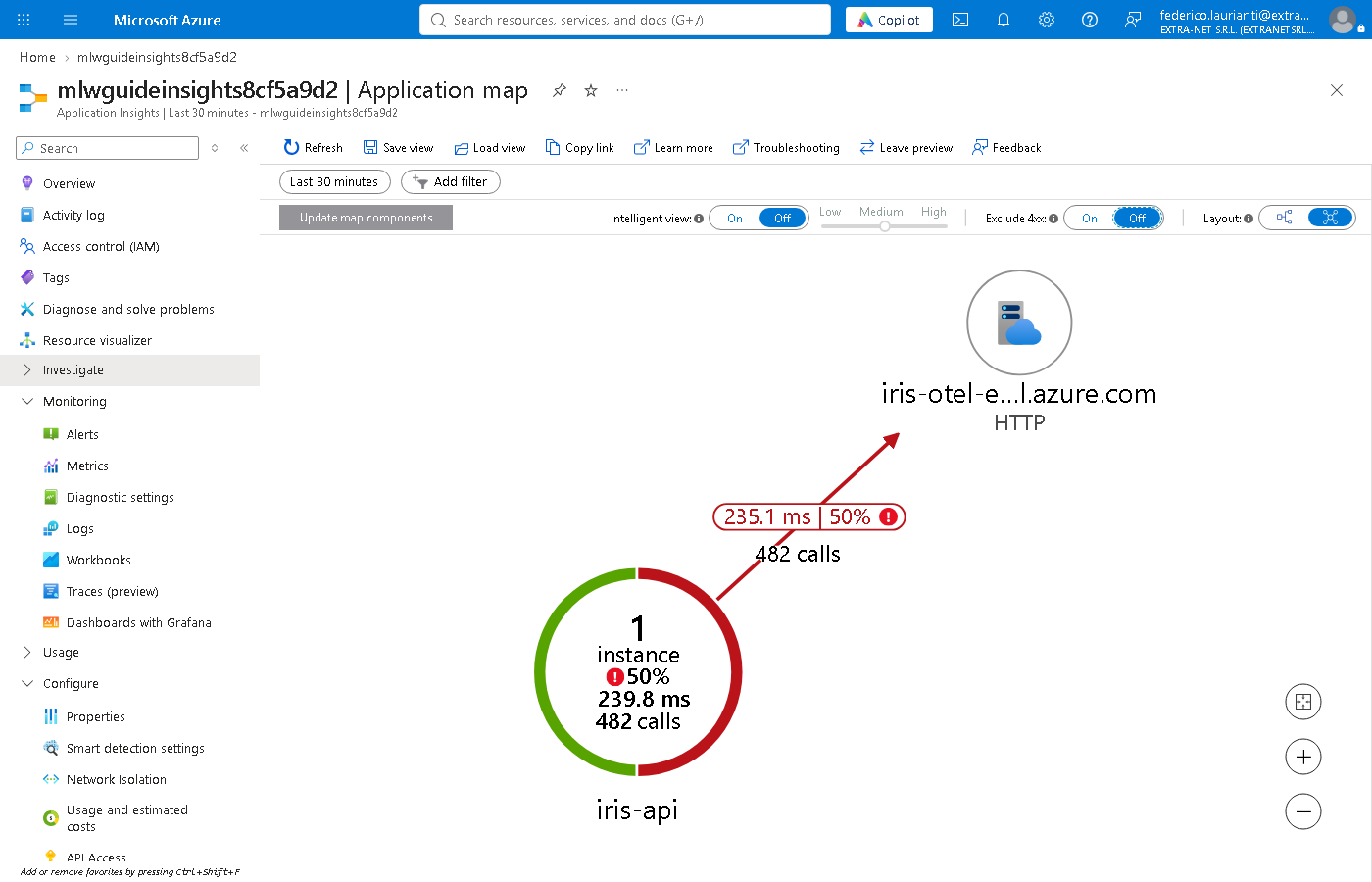
In the test the map showed iris-api with 482 calls, half of them failed, and its call to the model endpoint: 482 calls, 235.1 milliseconds on average, half of them failed. With Exclude 4xx on On, the proposed value, the 424 responses of the model do not count as errors and the arrow stays grey.
9. Follow a request
Press Investigate > Performance. At the top press Local Time: Last 24 hours, choose Last 30 minutes and press Apply. At the bottom right press Drill into > 482 Samples and, in the list that opens, choose a request with Response code: 200.
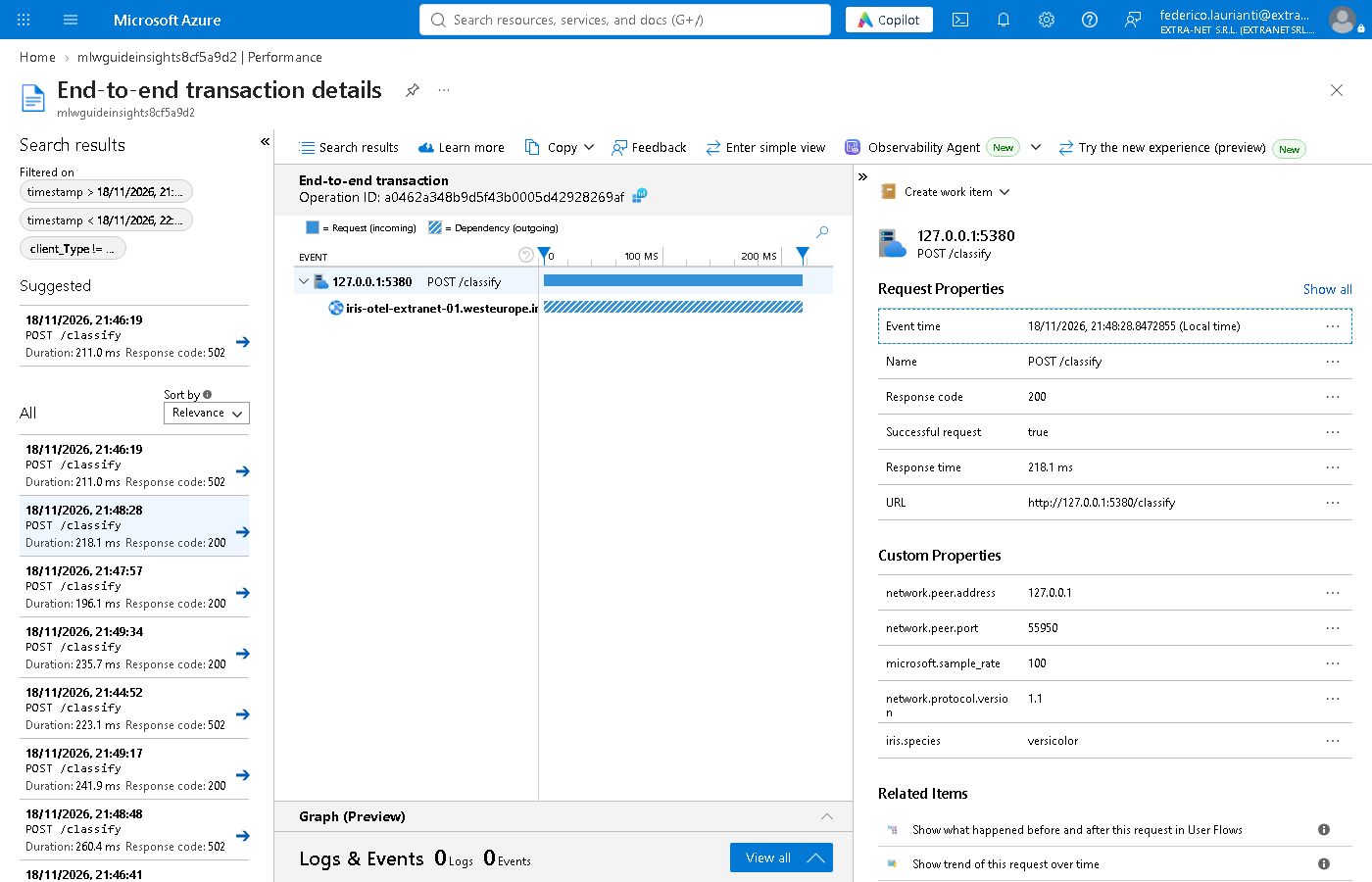
The panel shows the request to the API and, below it, the call to the model made during the request. In the test the request took 218.1 milliseconds; in Custom Properties there is iris.species with the predicted species, versicolor.
10. Find the errors
Press Investigate > Failures, choose Last 30 minutes as in step 9 and open the Dependencies tab.
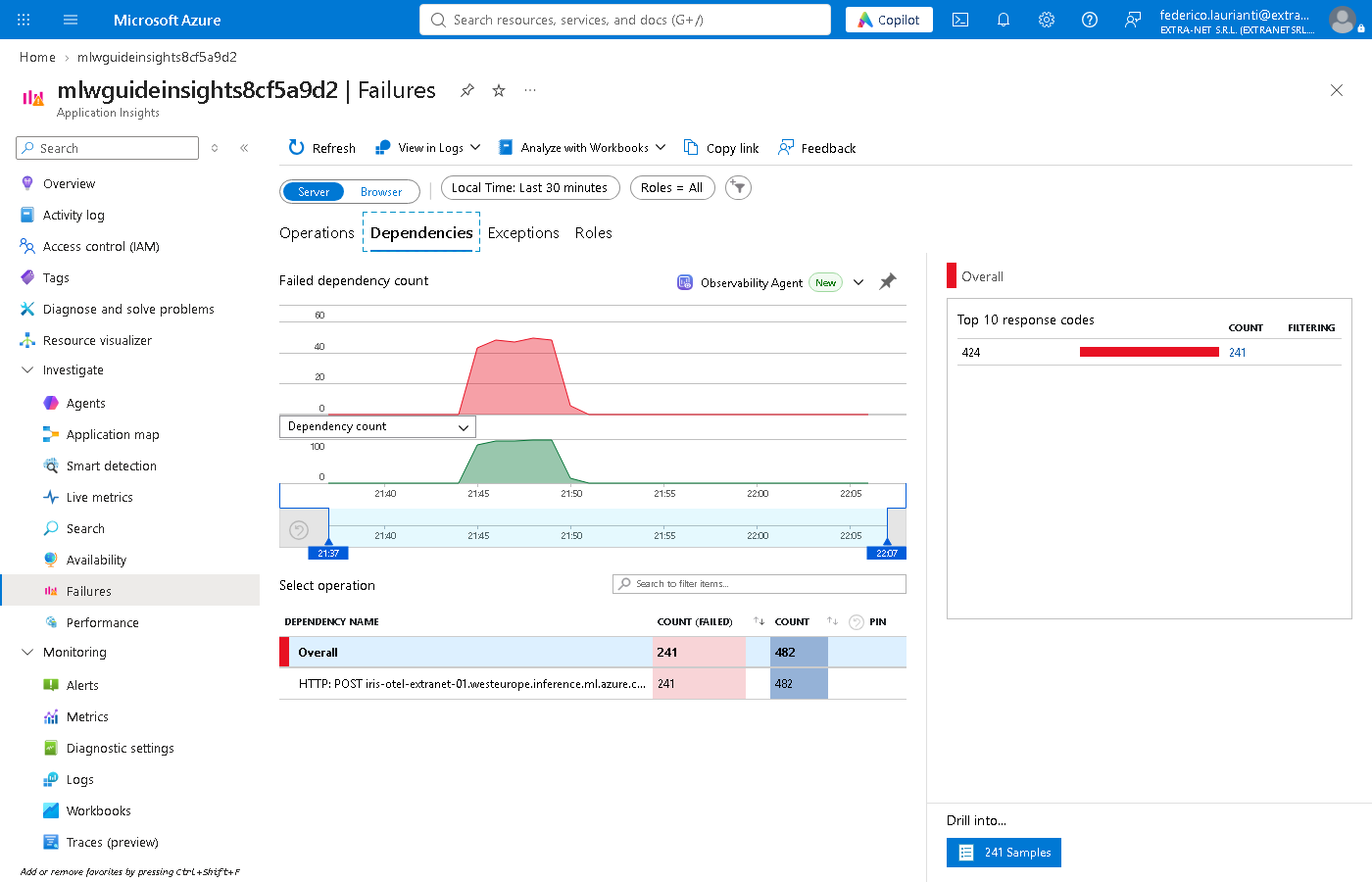
In the test 241 calls to the model out of 482 had failed, all with code 424: they are the requests of the faulty client. In the Operations tab the same 241 requests to the API appear with code 502.
11. Count the predictions by species
Press Monitoring > Metrics and fill in:
- Metric Namespace:
azure.applicationinsights, under CUSTOM - Metric:
iris.predictions - Aggregation: Sum
Press Apply splitting and in Values tick species. At the top press Local Time: Last 24 hours (Automatic), choose Last 30 minutes and press Apply; then, instead of Line chart, choose Bar chart.
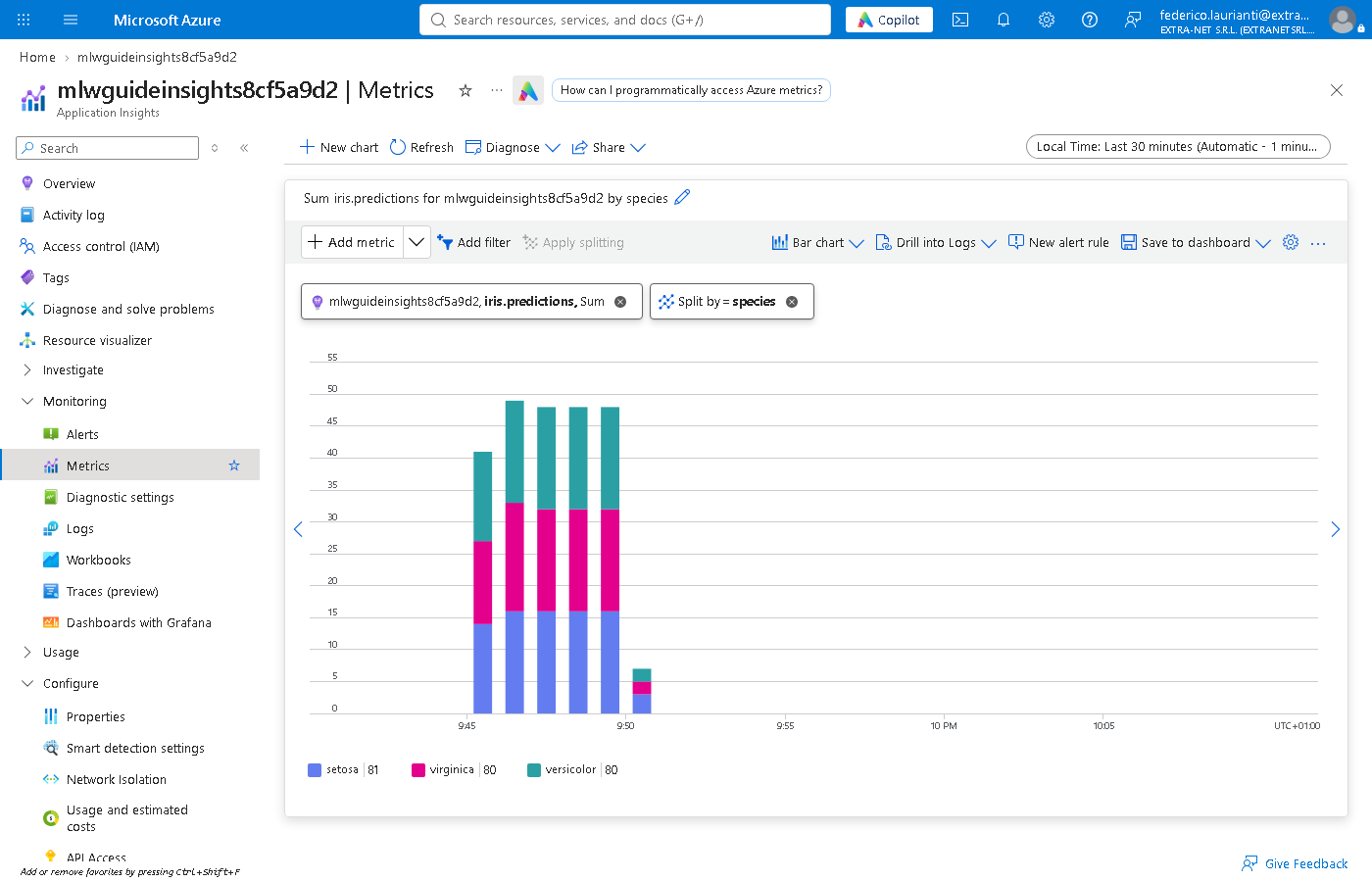
In the test: 81 setosa, 80 versicolor and 80 virginica, as the responses of the correct client in step 7.
Delete the resources
12. Delete the group
Stop the API with Ctrl+C. Delete the rg-guide-ml-01 group as in step 13 of the starting guide. Application Insights goes with it.
13. Permanently delete the workspace
On the portal search for Azure Machine Learning, press Recently deleted, choose the subscription and, in Location, West Europe. Tick mlw-guide-extranet-01 and press Permanently delete, as in step 14 of the starting guide. Without this step, for 14 days you cannot create a workspace with the same name.
Command names, screenshots and responses recorded on November 18, 2026, West Europe region, with .NET 11.